# Introduction
## Welcome to the Official Documentation
This is your central resource for understanding, setting up, and troubleshooting all our products. We are committed to providing the best tools and support to help you succeed.
#### Our Platforms
* **Website:** [Plex Development](https://plexdevelopment.net)
* **Discord Server:** [Join our Community](https://discord.gg/plexdev)
{% hint style="danger" %}
**Important Notice: Stay Secure**
Some unauthorized websites are distributing modified versions of our products containing **backdoors** or other malicious code. For your safety:
* **Always download our products directly from our official platforms**: [Plex Development](https://plexdevelopment.net), our [Discord Server](https://discord.gg/plexdev), or [BuiltByBit](https://builtbybit.com/creators/swqpping.156689).
* **Using leaked or unauthorized versions of our products is illegal** and may result in compromised security and functionality.
{% endhint %}
{% hint style="danger" %}
#### **Legal Disclaimer**
By using leaked versions of our products, you violate our intellectual property rights and terms of service. **We reserve the right to take legal action against individuals or entities found using or distributing unauthorized versions of our software.**
Protect yourself and your systems, always rely on our official resources for secure, up-to-date, and supported versions of our software.
{% endhint %}
# Requirements
Our products requires different dependencies for different operating systems. Please make sure you have all dependencies installed for your OS or our products may not start or function properly.
## Dependencies:
* Node.js 20.x.x LTS or above
* Hosting (VPS, Dedicated Server, Bot Hosting) with at least 512MB of RAM and 1 CPU core
* A text editor
* A stable Internet connection
* All NPM packages listed in the package.json (automatically installed with `npm install`)
{% hint style="danger" %}
The use of **Replit**, **Heroku**, **Glitch**, or other similar free hosting platforms is strictly prohibited. These platforms often make your code publicly accessible by default, putting your intellectual property at risk. If you choose to upload your code to such services, you are solely responsible for any unauthorized access, sharing, or public disclosure that may occur. You may also have your license revoked if the code is publicly accessible.
{% endhint %}
## Windows Dependencies
1. **Visual Studio Desktop Development C++**
* Required for compiling native Node.js modules.
2. **Install Node.js LTS**
* Download and install the latest Long-Term Support (LTS) version of Node.js directly from the [official Node.js website](https://nodejs.org/en/).
3. **Install Build Tools**
* Open an administrative Command Prompt and run the following command to install the necessary build tools:
```bash
npm install --global --production --vs2018 --add-python-to-path windows-build-tools
```
***
## Linux Dependencies
**Required Packages**
* **Common Packages:**
* `autoconf`, `automake`, `g++`, `libtool`, `build-essential`
* These tools are required to build and run native Node.js modules.
**Installing Node.js and Dependencies**
**For Debian/Ubuntu:**\
Run the following commands to install the required packages and the latest Node.js LTS:
```bash
# Install required build tools
sudo apt-get install -y autoconf automake g++ libtool build-essential
# Add NodeSource repository for the latest Node.js
curl -fsSL https://deb.nodesource.com/setup_20.x | sudo -E bash -
# Install Node.js
sudo apt-get install -y nodejs
```
**For CentOS/RHEL:**\
Run these commands to install the required packages and the latest Node.js LTS:
```bash
# Install Development Tools group for CentOS
sudo yum groupinstall -y "Development Tools"
# Add NodeSource repository for the latest Node.js
curl -fsSL https://rpm.nodesource.com/setup_20.x | sudo bash -
# Install Node.js
sudo yum install -y nodejs
```
**Verify Installation**
After installation, verify that Node.js and npm are correctly installed by running:
```bash
node -v
npm -v
```
# Windows Installation Guide
Follow these steps to install and run the bot on your Windows system:
### **Step 1: Unzip the Bot**
1. Download the bot's ZIP file from the official source.
2. **Unzip the file** into a folder of your choice.
* Ensure the folder is in an accessible location, such as `C:\Bots\YourBotName`.
***
### **Step 2: Configure the Bot**
1. Open the `config.yml` file in a text editor (we recommend **Visual Studio Code** or **Notepad++**).
2. Configure the settings in `config.yml` to suit your needs:
* [Add your **bot token** (from Discord Developer Portal).](/installation-and-setup/bot-application-setup)
* Add your **license key** (if applicable).
* Customize other settings based on your requirements.
3. Save the file once all changes are made.
***
### **Step 3: Open Command Prompt**
1. Open the Command Prompt by searching for **"cmd"** in the Start menu and clicking on it.
2. Navigate to your bot's directory using the `cd` command. For example:
```bash
cd C:\Bots\YourBotName
```
***
### **Step 4: Install Node Modules**
1. Ensure you have **Node.js LTS** installed on your system.
* If not, download and install the latest LTS version from [Node.js official website](https://nodejs.org/).
2. In the Command Prompt, install the required Node.js dependencies by running:
```bash
npm install
```
* This command will install all the necessary modules listed in the `package.json` file.
***
### **Step 5: Start the Bot**
1. Run the bot by typing the following command in the Command Prompt:
```bash
node index
```
2. Check the Command Prompt for any startup messages or errors.
***
### **Step 6: Verify the Bot**
1. Open your Discord server and check if the bot is online.
* If the bot isn’t online:
* Double-check your **bot token** in the `config.yml`.
* Make sure the required intents are enabled.
* Verify that your **license key** is correctly entered.
2. If you’ve confirmed these are correct and the bot is still not working, create a ticket in our [Discord Server](https://discord.gg/plexdev) for further assistance.
{% hint style="success" %}
By following this guide, your bot should be up and running in no time. For additional help, feel free to reach out to our support team on Discord.
{% endhint %}
# Linux Installation Guide
Follow these steps to install and run the bot on your Linux server:
### **Step 1: Log in to Your VPS**
1. Log in to your VPS using your preferred SSH client or terminal software (e.g., PuTTY, MobaXterm, or any similar tool).
***
### **Step 2: Place Bot Files on the Server**
1. Ensure the bot files are uploaded to a directory of your choice on the server.
***
### **Step 3: Navigate to the Bot Directory**
1. Open a terminal on the server and navigate to the folder containing your bot files using the `cd` command:
```bash
cd /path/to/your-bot-directory
```
***
### **Step 4: Install Node.js Modules**
1. Ensure all required Linux dependencies are installed.
* For a list of required dependencies, refer to the [Linux Dependencies Guide](/installation-and-setup/requirements).
2. Install the Node.js modules required for the bot by running:
```bash
npm install
```
* This will install all necessary dependencies as listed in the `package.json` file.
***
### **Step 5: Start the Bot**
1. Run the bot with the following command:
```bash
node index
```
2. Check the terminal output to ensure the bot starts without errors.
***
{% hint style="info" %}
### **Keeping the Bot Online 24/7**
To keep the bot running continuously, you can use the `screen` command or the `tmux` command. [Click here for a detailed guide on using](/frequently-asked-questions/keep-your-node.js-application-running-24-7)[ `screen` or `tmux`.](/frequently-asked-questions/keep-your-node.js-application-running-24-7)
{% endhint %}
{% hint style="success" %}
By following this guide, your bot should be up and running in no time. For additional help, feel free to reach out to our support team on Discord.
{% endhint %}
# Bot Application Setup
### Creating your bot
1. Visit the [Discord Developer Portal](https://discord.com/developers/applications).
2. Click **"New Application"** and give it a name.
3. Go to the **"Installation"** tab:
* Uncheck **User Install**
* Set **Install Link** to `"None"`
\
1\. Navigate to the **"Bot"** tab:
* Click **"Add Bot"**
* Under **Privileged Gateway Intents**, enable:
* `PRESENCE INTENT`
* `SERVER MEMBERS INTENT`
* `MESSAGE CONTENT INTENT`
* Under **Public Bot** settings:
* Disable **Public Bot**
* Untick **Require OAuth2 Code Grant**
* Click **Save Changes**
* Copy your **Bot Token** from the Token section
{% hint style="success" %}
**Note:** All of these options are found under the **Bot** tab.
{% endhint %}
# Creating a MongoDB Cluster
To get the MongoDB connection string, you have to create a MongoDB Cluster. If you don't know how to do that, you can either watch this short tutorial video or follow the instructions below:
### Video tutorial:
{% embed url="" %}
{% endembed %}
### Text:
This guide will guide you on how to create a MongoDB Cluster and generate a MongoDB connection string to put on your `config.yml` file.
We will do the following:
* Create a MongoDB Atlas Account
* Create a Cluster
* Make a user to connect to the cluster
* Allow our IP to connect to the cluster
* Insert the connection string to the `config.yml` file
### Step 1: Creating a MongoDB Atlas Account
To create a MongoDB Atlas account, go to , where you will be greeted with the landing page. Click on the "Try Free" button, then either sign up with Google, or sign up with email, then verify your email. You should now be on the Overview page.
### Step 2: Creating a MongoDB Cluster
To create a cluster, follow theses steps:
* Click on the big button that says "Create".
* At the top, click on the M0 template.
* Change the name, the provider, etc (or not)
* For the region, choose the region that is the closest to you.
* Disable "Preload sample dataset" on the quick setup section.
* Click on "Create Deployment" at the bottom.
After following all of theses steps, you should see that your MongoDB Cluster is currently building.
### Step 3: Make a user to connect
On the same page, locate the "Database Access" tab at the sidebar on the category called Security, and click on it.
Then, click on the Add New Database User button. For the authentification method, keep it as Password. Setup your username and a password that you will remember (or generate), as this is needed for the bot to connect to the cluster.
{% hint style="warning" %}
**Never** share your MongoDB password to anyone, including staff, and keep the password at a safe place. Plex Development will never ask for your MongoDB password whatsoever.
{% endhint %}
Then, scroll down until you see the Database User Privileges, then go to the "Built-in role" dropdown. Click on "Add Built-in Role", and you should see 3 options when clicking on the "Select Role" dropdown. Click on the "Read and write to any database" role, and then finally click on the Add User button at the bottom.
### Step 4: Allowing our IP to connect
Locate the Network Access tab on the sidebar, and click on it. Click on "Add IP Address". Here, you should see 2 buttons at the top. If you want to allow access to the database from anywhere, choose the second button. Otherwise, if your bot is hosted somewhere else, input the IP Address of the server hosting the bot in the "Access List Entry" field. If you are hosting locally, you can click on the first button. Then, you can click the Confirm button.
### Step 5: Inserting the connection string to the `config.yml` file
For the product to be able to connect, you must get a connection string. To get one, go to the "Clusters" tab at the sidebar, and on your cluster, click on the connect button. It should look like this:
You should now see some options telling you ways to connect. Click on Drivers, then copy the string that starts with `mongodb+srv://` . A connection string usually looks like this:
```
mongodb+srv://:@/?retryWrites=true&w=majority
```
Now, go to the `config.yml` file of the product, and locate the `MongoURI` field. There, insert your connection string that MongoDB provided you. It usually looks like this:
```yaml
MongoURI: "mongodb+srv://:@/?retryWrites=true&w=majority>"
```
{% hint style="success" %}
Congrats! You have successfully setup your MongoDB Cluster.
{% endhint %}
# Plex Tickets/Staff Dashboard
A tutorial on how to setup and configure the dashboard for Plex Tickets. You can either watch the video or follow the instructions below:
## Video tutorial:
{% embed url="" %}
{% endembed %}
## Text:
This guide will guide you on how to setup the dashboard for both Plex Tickets and Plex Staff to put on your `config.yml` file.
We will do the following:
* For Plex Tickets: Download the dashboard addon.
* Get the Client ID, Client Secret of our bot.
* Set the Callback URL on Discord's Developer Portal.
* Configure the rest.
* Test if everything works.
### Plex Tickets Dashboard:
### Step 1: Downloading the files
To begin, you will need to download the dashboard addon. You can download it from the [website](https://plexdevelopment.net/) or from [BuiltByBit](https://builtbybit.com/resources/plex-tickets-discord-ticket-bot.22209/). After downloading the addon, you have to unzip it to the `./addons/` folder.
### Step 2: Configure the dashboard
Next, you have to open the `./addons/Dashboard/config.yml` file, and configure it.
#### Filling out the config
{% hint style="warning" %}
**Important:** If you are using shared hosting without a VPS or reverse proxy, remember to include the port in all the links provided below.
{% endhint %}
This part is very important to succeed. You have to consider that you want to use any proxy and or SSL for your dashboard.
1. **Get the Client ID and Client Secret**
* Go to the [Discord Developer Portal](https://discord.com/developers/applications).
* Locate your bot's `clientId` and `clientSecret` under the OAuth2 section. Reset the Client Secret if necessary, then copy both of them and put them into the `config.yml` file.
2. **Configure Callback URL**
* Set the `callbackURL` specified in the `config.yml` file.
* If you use a shared hosting without a VPS or reverse proxy, use `http://:/auth/discord/callback`. Don't forget to replace `:` with your IP and port of your server.
* If you are using a domain, format it as `http://ticket.yourdomain.com/auth/discord/callback`. Don't forget to replace `ticket.yourdomain.com` with your domain.
* If you use SSL, you can use `https://ticket.yourdomain.com/auth/discord/callback`. Don't forget to replace `ticket.yourdomain.com` with your domain.
* On the same oAuth2 section, add that URL to the Redirect URL section on the Developer Portal.
You should now have 6 more fields to fill out:
* `Port`: This is the port where the webserver will be running. You can change this to anything, just be aware that it can't be used by any other programs on the VPS. If you are using a shared hosting, the port must be the one assigned to you.
* `URL`: The URL you want to access the dashboard. For example, if you use a custom domain with SSL, you would put `https://ticket.yourdomain.com` as the URL.
* `secretKey`: You can set anything to this but it has to be a string so random characters. We recommend to use [Dashlane's password generator](https://www.dashlane.com/features/password-generator).
* `Secure`: If you want to use SSL for your domain, you have to enable this by setting the value to true. Some users may report that enabling this setting makes them unable to connect to the dashboard. If this is the case, try disabling this setting.
* `trustProxy`: If you use a Reverse Proxy, like Nginx or Cloudflare Tunnels, you must enable this setting for the dashboard to trust proxies.
* `SessionExpires`: This setting controls when the user should be logged out after logging in. For example, if this setting is set to 30d, the user gets logged out after 30 days instead of the usual 7 days.
### Step 3: Restart and test
Once all of theses has been configured, you can restart your bot. If everything you did went correctly, the dashboard should be usable by the URL you set in the config.yml of the dashboard addon, and you should be able to login to the dashboard via Discord.
### Plex Staff Dashboard:
The steps are almost the same for Plex Tickets Dashboard, so you can also use the steps above to setup the dashboard for Plex Staff.\
The only difference is that you have to set every roles permissions in the config.yml file, and the dashboard configuration is located in the main config.yml not in the addons folder, as the dashboard for Plex Staff is included.
{% hint style="success" %}
Congrats! Your dashboard should be up and running after following all of theses steps.
{% endhint %}
# Setting Up a Reverse Proxy with Nginx
This guide will walk you through setting up a reverse proxy using Nginx on an Ubuntu (Linux) VPS or dedicated server.
A reverse proxy allows you to use a custom domain for your self-hosted Node.js applications (like websites and bots with dashboards). For a more simpler option, go [here](/installation-and-setup/setting-up-a-reverse-proxy-with-cloudflare-tunnels).
{% hint style="danger" %}
This guide is only applicable if you're using a VPS, dedicated server, or similar. Shared hosting does not support custom reverse proxy setups.
{% endhint %}
### What is a Reverse Proxy?
A reverse proxy is a server that forwards requests from clients (e.g., web browsers) to another server. For example, when a user visits `https://yourdomain.com`, the reverse proxy directs the request to your application running locally (e.g., on `http://localhost:3000`). This is essential for:
* Using a custom domain with your application.
* Handling HTTPS (secure connections).
* Better performance and security management.
This guide assumes you already have:
1. An Ubuntu VPS or dedicated server.
2. Your Node.js application running locally (e.g., on `http://localhost:3000`).
### Step 1: Install Nginx
Nginx is a lightweight, high-performance web server that will act as the reverse proxy for your application. Follow these steps to install it:
1. Update your package list:
sudo apt update
2. Install Nginx:
```
sudo apt install nginx -y
```
3. Start and enable Nginx to ensure it runs on boot:
```
sudo systemctl enable --now nginx
```
4. Verify the installation by visiting your server's public IP address in a browser. You should see the default Nginx welcome page.
#### Explanation:
* `apt update`: Updates the package list to ensure you get the latest version of Nginx.
* `apt install nginx`: Installs Nginx.
* `systemctl enable --now nginx`: Starts the Nginx service immediately and ensures Nginx starts automatically when the server boots.
### Step 2: Upload your files to the server
The first step is to upload the product files to your server. Follow these instructions:
1. Use an FTP client (e.g., FileZilla)
2. Place the product folder in a directory, such as `/home/your_product_folder`.
Place your files in an easily accessible directory, such as `/home`, for better organization and management.
### Step 3: Create a New Nginx Configuration File
Run the following command to edit/create your Nginx configuration file:
```
sudo nano /etc/nginx/sites-available/your_domain
```
Add the following configuration:
```
server {
listen 80;
server_name example.com; # Change to your domain.
location / {
proxy_pass http://localhost:3000; # Keep localhost as it is. Change only the port if needed.
proxy_http_version 1.1;
proxy_set_header Upgrade $http_upgrade;
proxy_set_header Connection 'upgrade';
proxy_set_header Host $host;
proxy_cache_bypass $http_upgrade;
proxy_set_header X-Real-IP $remote_addr;
}
error_page 502 /502.html;
location = /502.html {
root /home/PlexStore;
}
}
```
#### Important Notes:
* **`proxy_pass`:** Always keep `localhost` the same, even if your domain changes. The port number (`3000`) must match the port your application is using, as configured in your product's `config.yml` file. For example, if your product's `config.yml` specifies port `4000`, replace `3000` with `4000`.
* **`server_name`:** Replace `example.com` with your actual domain name.
* **`root`:** Specifies the directory where your custom error page is located. This should be the path of where your product is located.
Save and close the file (press `Ctrl+O`, `Enter`, and `Ctrl+X`).
### Step 4: Enable the Configuration
Run the following commands:
```
sudo ln -s /etc/nginx/sites-available/your_domain /etc/nginx/sites-enabled/
sudo rm /etc/nginx/sites-enabled/default
```
#### Explanation:
* `ln -s`: Creates a symbolic link to enable your new configuration.
* `rm`: Disables the default Nginx configuration to avoid conflicts.
### Step 5: Test and Reload Nginx
Run these commands:
```
sudo nginx -t
sudo systemctl reload nginx
```
#### Explanation:
* `nginx -t`: Tests your Nginx configuration for errors.
* `systemctl reload nginx`: Reloads Nginx to apply the new configuration.
If there are no errors, your reverse proxy is now set up!
### Step 6: Point Your Domain to the Server
To complete the setup, configure your domain's DNS settings:
1. Log in to your domain registrar's control panel.
2. Add an **A Record** with the following details:
* **Name**: `@` (or leave it blank for the root domain).
* **Value**: Your server's public IP address.
#### Important Notes:
* Ensure you only create a single **A Record** pointing to your server's IP.
* DNS propagation may take a few minutes to several hours.
### Step 7: Final Verification
Once the DNS changes have propagated, you should be able to access your application using your domain (e.g., `http://example.com`).
### Step 8: Making the application recognize our domain
Now that we have everything setup, we must now configure the application to accept proxies. Go to your `config.yml` file, and find `Secure`, and `trustProxy`. You must disable Secure and enable trustProxy instead. It should look like this:
```yaml
Secure: false # Enable if you are using HTTPS
trustProxy: true # Enable If your application is behind a reverse proxy (like Cloudflare, Nginx, etc.)
```
Make sure the URL and the callback URL matches the domain, and save the config, and restart the application.
***
### Adding SSL (optional)
Adding SSL to your website is useful if you want to add HTTPS, which allows secure connections , and easy to setup. This requires a reverse proxy that has already been configured. Follow the guide above if you already don't have one.
### Step 1: Install certbot
certbot is a tool used to generate SSL certificates and allows you to automatically renew your SSL certificate. Follow theses steps to install it:
1. Update your package list:
sudo apt update
2. Install certbot and the nginx plugin for certbot:
```
sudo apt install certbot python3-certbot-nginx -y
```
#### Explanation:
* `apt update`: Updates the package list to ensure you get the latest version of certbot.
* `apt install certbot python3-certbot-nginx`: Installs certbot and the nginx plugin for certbot.
### Step 2: Creating a certificate
After installing certbot, we need to generate a certificate. In the command below, replace `` with your domain you want to generate a certificate for.
```
certbot --nginx -d
```
Enter a **VALID** email (it will be used for renewal notices), accept the Terms of Service of Let's Encrypt, and choose if you want to sign up to the EFF newsletter (not required).
#### Explanation of the arguments:
* `--nginx`: This argument tells certbot to use the nginx plugin to generate a SSL certificate.
* `-d `: Tells certbot what domain do you want to generate a certificate for.
Once done everything, certbot may ask you if you want to redirect users from http to https, so choose the **Redirect** option by typing 2.
### Step 3: Final Verification
Once certbot has finished, you should be able to access your application using your domain with https (e.g., `https://example.com`).
***
### Hosting Multiple Websites
If you need to host multiple Node.js applications, you can repeat all the steps in this guide for each application. Keep the following in mind:
1. Each application must run on a separate port (e.g., `3001`, `3002`, etc.). Ensure the `proxy_pass` directive in the Nginx configuration file matches the port used by the application.
2. Use a unique domain or subdomain for each application by updating the `server_name` directive accordingly.
3. Ensure that each application is running independently and that the correct ports are open on your VPS or server.
By following these guidelines, you can host multiple applications and manage them seamlessly using Nginx as a reverse proxy.
{% hint style="success" %}
Congratulations! Your setup is now complete. If everything is configured correctly, your application should be accessible via your custom domain. If you encounter any issues, double-check the steps above or contact support for assistance.
{% endhint %}
# Setting Up a Reverse Proxy with Cloudflare Tunnels
This guide will walk you through setting up a reverse proxy using Cloudflare Tunnels on an Ubuntu (Linux) VPS or dedicated server.
A reverse proxy allows you to use a custom domain for your self-hosted Node.js applications (like websites and bots with dashboards). This guide will walk you through setting up a reverse proxy using Cloudflare Tunnels, using Ubuntu as the base OS of this documentation. If you want a more advanced option, go [here](/installation-and-setup/setting-up-a-reverse-proxy-with-nginx).
{% hint style="danger" %}
This guide is only applicable if you're using a VPS, dedicated server, or similar. Shared hosting does not support custom reverse proxy setups.
{% endhint %}
### What is a Reverse Proxy?
A reverse proxy is a server that forwards requests from clients (e.g., web browsers) to another server. For example, when a user visits `https://yourdomain.com`, the reverse proxy directs the request to your application running locally (e.g., on `http://localhost:3000`). This is essential for:
* Using a custom domain with your application.
* Handling HTTPS (secure connections).
* Better performance and security management.
This guide assumes you already have:
1. An Ubuntu VPS or dedicated server.
2. A domain name that the DNS is managed by Cloudflare.
3. Your Node.js application running locally (e.g., on `http://localhost:3000`).
### Pros:
* Free of charge
* Full GUI, zero-config files
* You can put your application behind a firewall
* No need to expose your real IP
* No need a reverse proxy software such as Nginx, Caddy or Traefik
* Zero-config SSL
* Free SSL
### Cons:
* (Not a con if you are already using Cloudflare) Your domain's nameservers have to move to Cloudflare.
### Step 1. Creating a Tunnel
A tunnel is a reverse proxy where it goes to Cloudflare's servers and communicates with cloudflared, the daemon running on your server, which securely routes incoming traffic through the tunnel to the application. To create a tunnel, follow theses steps:
1. Login to Cloudflare, then go to the [Cloudflare Zero Trust](https://dash.teams.cloudflare.com/) page.
2. Go to `Network`, then `Tunnels`, then `Create a Tunnel`. A image is also placed below to show image steps.
3. Once you see 2 tunnel types, click on `Select Cloudflared`.
4. Name your tunnel name anything you want, like `plex_server`.
5. You should now be on a screen where you need to install and run the connector (cloudflared). Depending of your architecture and your operating OS, you must install cloudflared through the steps below that it provided you.
6. Once you have done the steps it provided you, you should now see your connector. Click on `Next`. The connector has successfully been installed.
### Step 2: Setting up a domain for our application
Now that we have the connector installed, we must make a domain where we can access the application.
Once you have successfully installed the connector, you should now be redirected to a page that looks similar like the image below. To fill theses missing fields, do theses:
* For the public hostname, put your favorite domain name. This will be used to access the dashboard. It must not be a already existing DNS record.
* Below, on the service field, for the type, select HTTP, and the URL must be `localhost:`. For example, if the application is using the port 3000, you would put `localhost:3000`.
* Finally, click `Save Hostname`.
### Step 3: Making the application recognize our domain
Now that we have everything setup, we must now configure the application to accept proxies. Go to your `config.yml` file, and find `Secure`, and `trustProxy`. You must disable Secure and enable trustProxy instead. It should look like this:
```yaml
Secure: false # Enable if you are using HTTPS
trustProxy: true # Enable If your application is behind a reverse proxy (like Cloudflare, Nginx, etc.)
```
Make sure the URL and the callback URL matches the domain, and save the config, and restart the application.
### Step 4: Final Verification
Once the DNS changes have propagated, you should be able to access your application using the domain set on Cloudflare Zero Trust. (e.g., `https://example.com`)
### Adding multiple public hostnames
If you have multiple applications that are hosted on the same server, you can make a public hostname for each application. To do this, go back to `Network`, then `Tunnels`, then click on your tunnel, and click on the `Edit` button. Go to the `Public Hostname` tab, and then `Add a public hostname`. Then, repeat [Step 2](#step-2-setting-up-a-domain-for-our-application) and [Step 3](#step-3-making-the-application-recognize-our-domain).
{% hint style="success" %}
Congratulations! Your setup is now complete. If everything is configured correctly, your application should be accessible via your custom domain. If you encounter any issues, double-check the steps above or contact support for assistance.
{% endhint %}
# Creating an addon
This guide explains how to create a basic addon for our bots. Addons allow users to extend the bot's functionality without modifying the main codebase.
#### **What is an Addon?**
An addon is a file or group of files inside the `addons/` folder that can:
* **Listen to events**: React to things happening in the bot (e.g., when a message is sent or a member joins).
* **Add slash commands**: Create commands that users can type into Discord starting with `/`.
You can choose to use **only events**, **only commands**, or **both** in an addon. It's up to you!
#### **Addon File Requirements**
1. **Event Listener Files**:
* These files can be named **anything** (e.g., `myEvents.js`).
* Use event listeners to react to bot activities, like a user sending a message.
2. **Slash Command Files**:
* These files **must start with `cmd_`** (e.g., `cmd_exampleCommand.js`).
* Use slash commands to create commands users can trigger with `/`.
#### **How the Addon System Works**
1. **Event Handlers**:
* All events (like `messageCreate` or `guildMemberAdd`) are centralized in the bot using something called an `eventHandler`.
* You can use `on` to listen for these events in your addon.
2. **Slash Command Handlers**:
* If you include a file that starts with `cmd_`, the bot will automatically load it as a slash command.
#### **Step 1: Creating an Event Listener (Optional)**
To listen to events, create a new file in the `addons/` folder. The file name can be anything, like `myEventAddon.js`.
**Example: Listening to `messageCreate`**
Here’s how you can listen for messages and respond when someone says `!hello`:
```javascript
module.exports.register = ({ on }) => {
on('messageCreate', (message) => {
if (message.content === 'hello') {
message.channel.send('Hello! This message is from my custom addon.');
}
});
};
```
#### **Step 2: Creating a Slash Command (Optional)**
If you want to create a slash command, the file must start with `cmd_`, for example: `cmd_greet.js`.
**Example: A Simple Slash Command**
Here’s how you can create a `/greet` command:
```javascript
const { SlashCommandBuilder } = require('@discordjs/builders');
module.exports = {
data: new SlashCommandBuilder()
.setName('greet')
.setDescription('Sends a greeting message.'),
async execute(interaction, client) {
await interaction.reply('Hello! This is a slash command from my addon.');
},
};
```
#### **Step 3: Combining Events and Commands**
You can create both an event listener and a slash command in the same addon. Just use a separate file for each.
**Example File Structure**
```bash
/addons/
myAddon/
myEvents.js <-- Handles events like messageCreate
cmd_greet.js <-- Handles the /greet slash command
```
**Example: myEvents.js**
```javascript
module.exports.register = ({ on }) => {
on('messageCreate', (message) => {
if (message.content === '!ping') {
message.channel.send('Pong! This message is from the event listener in my addon.');
}
});
on('guildMemberAdd', (member) => {
console.log(`${member.user.tag} joined the server.`);
});
};
```
**Example: cmd\_greet.js**
```javascript
const { SlashCommandBuilder } = require('@discordjs/builders');
module.exports = {
data: new SlashCommandBuilder()
.setName('greet')
.setDescription('Sends a greeting message.'),
async execute(interaction, client) {
await interaction.reply('Hello from the /greet command!');
},
};
```
#### **Step 4: Loading Your Addon**
* Place your addon files in the `addons/` folder.
* The bot will automatically detect and load event listener files and slash commands when it starts.
#### **Advanced Example: Fully Featured Addon**
Here’s an example addon that listens for events and includes a slash command:
**File Structure**
```lua
/addons/
exampleAddon/
events.js <-- Handles bot events
cmd_example.js <-- Handles a slash command
```
**File: `events.js`**
This file contains event listeners for various bot events.
const { ActionRowBuilder, ButtonBuilder, EmbedBuilder } = require('discord.js');

module.exports.register = ({ on }) => {
    // Example: Respond to a specific message
    on('messageCreate', (message) => {
        if (message.content === '!info') {
            const embed = new EmbedBuilder()
                .setColor('#0099ff')
                .setTitle('Bot Information')
                .setDescription('This is an example addon showcasing embeds and buttons.')
                .setFooter({ text: 'Example Addon', iconURL: 'https://example.com/icon.png' });

            const row = new ActionRowBuilder().addComponents(
                new ButtonBuilder()
                    .setCustomId('info_button')
                    .setLabel('Click Me!')
                    .setStyle('Primary')
            );

            message.channel.send({ embeds: [embed], components: [row] });
        }
    });

    // Example: Handle a button click
    on('interactionCreate', async (interaction) => {
        if (!interaction.isButton()) return;

        if (interaction.customId === 'info_button') {
            await interaction.reply({
                content: 'You clicked the button! This response is from the example addon.',
                ephemeral: true,
            });
        }
    });

    // Example: Log when the bot is ready
    on('ready', () => {
        console.log('The advanced example addon is loaded and ready!');
    });
};
**File: `cmd_advanced.js`**
This file contains a slash command definition and its execution logic.
```javascript
const { SlashCommandBuilder } = require('@discordjs/builders');
const { ActionRowBuilder, ButtonBuilder, EmbedBuilder } = require('discord.js');
module.exports = {
data: new SlashCommandBuilder()
.setName('advanced')
.setDescription('An advanced slash command example.'),
async execute(interaction, client) {
const embed = new EmbedBuilder()
.setColor('#00ff00')
.setTitle('Advanced Slash Command')
.setDescription('This command demonstrates an embed with buttons.')
.setFooter({ text: 'Example Addon', iconURL: 'https://example.com/icon.png' });
const row = new ActionRowBuilder().addComponents(
new MessageButton()
.setCustomId('slash_button')
.setLabel('Press Me!')
.setStyle('Success')
);
await interaction.reply({
embeds: [embed],
components: [row],
});
},
};
```
### How to Create an Addon with MongoDB Integration
Integrating MongoDB with your addon is simple and allows you to store and retrieve data from the same database used by the main bot. This guide will show you how to set up a MongoDB model in your addon and use it effectively.
#### **Step 1: Create a MongoDB Model**
Add your MongoDB models in the same folder as your addon. For example, you can create a file called `exampleModel.js` inside your addon folder.
**File: `exampleModel.js`**
Here’s an example model for storing example data:
```javascript
const mongoose = require('mongoose');
// Define the schema
const ExampleSchema = new mongoose.Schema({
userId: { type: String, required: true }, // The user's ID
points: { type: Number, default: 0 }, // Example: Points the user has
createdAt: { type: Date, default: Date.now }, // When the entry was created
});
// Export the model
module.exports = mongoose.model('Example', ExampleSchema);
```
#### **Step 2: Use the Model in Your Addon**
To use the model in your addon, import it just like you would in any other Node.js project. You can now interact with the database using MongoDB methods.
Here’s an example slash command to interact with the database:
```javascript
const { SlashCommandBuilder } = require('@discordjs/builders');
const ExampleModel = require('./exampleModel'); // Import the model
module.exports = {
data: new SlashCommandBuilder()
.setName('setpoints')
.setDescription('Set points for a user.')
.addUserOption(option =>
option.setName('target')
.setDescription('The user to set points for')
.setRequired(true))
.addIntegerOption(option =>
option.setName('points')
.setDescription('The number of points to set')
.setRequired(true)),
async execute(interaction) {
const targetUser = interaction.options.getUser('target');
const points = interaction.options.getInteger('points');
if (points < 0) {
return interaction.reply('Points must be a non-negative number.');
}
// Update or create the user in the database
let user = await ExampleModel.findOne({ userId: targetUser.id });
if (!user) {
user = new ExampleModel({ userId: targetUser.id, points });
} else {
user.points = points;
}
await user.save(); // Save the changes
interaction.reply(`${targetUser.username} now has ${user.points} points.`);
},
};
```
### **Full Example Addon with MongoDB integration**
**File Structure**
```lua
/addons/
mongodbExample/
events.js <-- Handles bot events
cmd_example.js <-- Handles a slash command
exampleModel.js <-- MongoDB model
```
**Code Recap**
1. **`exampleModel.js`:**
```javascript
const mongoose = require('mongoose');
const ExampleSchema = new mongoose.Schema({
userId: { type: String, required: true },
points: { type: Number, default: 0 },
createdAt: { type: Date, default: Date.now },
});
module.exports = mongoose.model('Example', ExampleSchema);
```
2. **`events.js`:**
```javascript
const ExampleModel = require('./exampleModel');
module.exports.register = ({ on }) => {
on('messageCreate', async (message) => {
if (message.content.startsWith('!addpoints')) {
const userId = message.author.id;
const pointsToAdd = parseInt(message.content.split(' ')[1]) || 0;
let user = await ExampleModel.findOne({ userId });
if (!user) user = new ExampleModel({ userId, points: pointsToAdd });
else user.points += pointsToAdd;
await user.save();
message.channel.send(`${message.author.username} now has ${user.points} points!`);
}
if (message.content.startsWith('!checkpoints')) {
const userId = message.author.id;
const user = await ExampleModel.findOne({ userId });
message.channel.send(user ? `You have ${user.points} points.` : 'You have no points yet!');
}
});
};
```
3. **`cmd_example.js`:**
```javascript
const { SlashCommandBuilder } = require('@discordjs/builders');
const ExampleModel = require('./exampleModel');
module.exports = {
data: new SlashCommandBuilder()
.setName('setpoints')
.setDescription('Set points for a user.')
.addUserOption(option =>
option.setName('target')
.setDescription('The user to set points for')
.setRequired(true))
.addIntegerOption(option =>
option.setName('points')
.setDescription('The number of points to set')
.setRequired(true)),
async execute(interaction) {
const targetUser = interaction.options.getUser('target');
const points = interaction.options.getInteger('points');
let user = await ExampleModel.findOne({ userId: targetUser.id });
if (!user) user = new ExampleModel({ userId: targetUser.id, points });
else user.points = points;
await user.save();
interaction.reply(`${targetUser.username} now has ${user.points} points.`);
},
};
```
# Addon Guidelines
{% hint style="info" %}
These guidelines are designed to ensure a fair, consistent, and high-quality addon ecosystem for Plex Development products. Adherence to these guidelines is mandatory for all addon developers. Failure to comply may result in the removal of your addon.
{% endhint %}
### 1. Originality and Uniqueness
* Addons must be **original** and not substantially similar to existing addons, especially those sold or officially distributed through the Plex Development store.
* This includes, but is not limited to:
* Clones
* Near-identical copies
* Addons that replicate core functionality with only minor changes
* Addons that replicate functionality of **free addons** in the Plex Development store **may be allowed**, but only if they introduce **significant improvements, enhancements, or unique features**.
### 2. Content and Functionality
* Addons **must not** contain malicious code, malware, spyware, or any harmful functionality.
* Addons **must not** infringe on copyrights, trademarks, or intellectual property rights.
* Addons **must not** collect, store, or transmit user data without **explicit user consent** and clear disclosure.
* Addons must function as advertised.
* Misleading descriptions, exaggerated claims, or broken functionality may result in immediate removal.
### 3. Points and Rewards System
Points awarded for publishing addons are based on multiple factors, including but not limited to:
* **Complexity and feature depth**\
More advanced and feature-rich addons typically receive more points.
* **Quality of presentation**\
A clear, well-written addon description, including screenshots and/or videos, significantly affects point allocation. Descriptions should clearly explain:
* What the addon does
* Key features
* How to install and use it
* **Overall effort and quality**\
Very low-effort or low-quality addons may receive **very few points or none at all**.
### 4. Maintenance and Compatibility
* Addons must remain compatible with **current versions** of Plex Development products.
* Addons that become severely outdated or non-functional may be removed.
* If a developer is unable or unwilling to maintain an addon, it may be removed to prevent confusion or support issues.
### 5. Support, Promotion, and Community Safety
To protect users and maintain a centralized, safe support environment:
* **Addon developers are NOT allowed to require users to join or use their own Discord server for support** if the addon is:
* Published in,
* Advertised in, or
* Distributed through\
the **Plex Development Discord server or platform**.
* This includes:
* Linking personal Discord servers for mandatory support
* Gating support behind external communities
* Redirecting users away from Plex Development for primary addon support
#### Allowed Exception
* This rule **does NOT apply** if:
* The addon is **not published or advertised** within Plex Development, **and**
* The addon is fully promoted and distributed through the developer’s **own website or platform**.
### 6. Code Obfuscation, Encryption & Licensing Systems
* Addons **are allowed** to be obfuscated or encrypted to protect intellectual property.
* Addons **may include** a license key system, authentication system, or external verification service provided by the addon creator.
#### Approval Requirement for Obfuscated Addons
* **Any addon that is obfuscated or encrypted must receive prior approval from Plex Development staff before being published.**
* Approval must be requested through a **support ticket**, where staff will review the addon to ensure it does not contain:
* Malicious or harmful code
* Unauthorized data collection
* Hidden or misleading functionality
* Publishing an obfuscated addon **without prior approval** may result in immediate removal.
#### Reliability & Uptime Requirements
* If an addon includes a license key system, authentication service, or external dependency:
* The system must be **reliable, stable, and have good uptime**.
* It must not frequently go offline, block legitimate users, or cause repeated functionality issues.
* If a licensing or authentication system:
* Regularly goes down,
* Prevents users from using the addon,
* Or causes significant support issues,
**Plex Development reserves the right to remove the addon** to protect user experience and platform reliability.
#### Transparency Requirement
* Addons using obfuscation, encryption, or licensing systems must **clearly disclose this** in their addon description.
* Users should be informed if the addon depends on:
* External servers
* License validation
* Online authentication to function
{% hint style="success" %}
We're building an ecosystem of innovation, learning, and quality. Whether you're creating a simple utility or a complex solution, we welcome your contributions!
By following these guidelines and utilizing the provided documentation, you can create addons that enhance the Plex Development ecosystem and benefit our users. We look forward to seeing your innovative creations!
{% endhint %}
# ⭐ Recommended Hosts
We’ve carefully selected a list of hosting providers that work seamlessly with our products. Each host offers reliable services, excellent performance, and compatibility with Node.js applications.
{% hint style="warning" %}
I**mportant Note for Web Dashboards**
If you plan to host a **web dashboard**, such as **Plex Store**, **Plex Tickets Dashboard**, or **Plex Staff**, and want to use a **custom domain**, please note the following:
* **VPS Required for Reverse Proxy Setup:**\
To use a custom domain, you will need to configure a reverse proxy (e.g., Nginx or Apache). This configuration typically requires a VPS or similar hosting solution that provides root access.
* **Access via IP Address:**\
Without a reverse proxy and custom domain setup, the web dashboards will still function but will only be accessible via the server’s IP address rather than a domain.
{% endhint %}
### **Discord Bot Hosting**
#### 1. **Novonode**
* **Website:** [Novonode](https://billing.novonode.com/aff.php?aff=173)
* **Starting Price:** $1/month
#### 2. **Sparkedhost**
* **Website:** [Sparkedhost](https://billing.sparkedhost.com/aff.php?aff=2635)
* **Starting Price:** $1/month
***
### **VPS Hosting**
#### 1. **Sparkedhost**
* **Website:** [Sparkedhost](https://billing.sparkedhost.com/aff.php?aff=2635)
* **Starting Price:** $5.60/month
* **Why Choose a VPS?**\
A VPS provides greater flexibility and control compared to bot hosting. With a VPS, you can:
* Host multiple Discord bots
* Run web dashboards (e.g., **Plex Store**, **Plex Tickets Dashboard**, **Plex Staff**) with a custom domain.
* Host other applications or services.
#### 2. **PebbleHost VPS**
* **Website:** [PebbleHost VPS](https://billing.pebblehost.com/aff.php?aff=3696)
* **Starting Price:** $10/month
* **Why Choose a VPS?**\
A VPS provides greater flexibility and control compared to bot hosting. With a VPS, you can:
* Host multiple Discord bots
* Run web dashboards (e.g., **Plex Store**, **Plex Tickets Dashboard**, **Plex Staff**) with a custom domain.
* Host other applications or services.
#### 1. **Novonode**
* **Website:** [Novonode](https://billing.novonode.com/aff.php?aff=173)
* **Starting Price:** $3.5/month
* **Why Choose a VPS?**\
A VPS provides greater flexibility and control compared to bot hosting. With a VPS, you can:
* Host multiple Discord bots
* Run web dashboards (e.g., **Plex Store**, **Plex Tickets Dashboard**, **Plex Staff**) with a custom domain.
* Host other applications or services.
{% hint style="info" %}
Some of the links on this page are affiliate links, which means we may earn a commission if you make a purchase — at no additional cost to you.
{% endhint %}
# How to update
Follow these steps carefully to update your Plex Tickets, Plex Staff, or Plex Status product to the latest version without losing your configurations or data:
{% hint style="danger" %}
**Note:** This guide only covers updating **Plex Tickets**, **Plex Staff**, **Plex Status,** and **Plex Forms**. For instructions on how to update **Plex Store**, please visit [this link](/plex-store/how-to-update).
{% endhint %}
## Plex Tickets/Plex Staff/Plex Status/Plex Forms:
### **Step 1: Backup Your Configurations**
1. Locate your `config.yml` file in the bot’s directory.
2. Create a **backup** of this file by copying it to a safe location (e.g., your desktop or a backup folder).
* This ensures you can restore your settings if anything goes wrong during the update.
***
### **Step 2: Download the Latest Update**
1. Visit the official platform where you downloaded the bot to get the latest version.
2. Download the update files to your computer.
***
### **Step 3: Replace Existing Files**
1. Navigate to your bot’s installation directory.
2. **Replace all existing files** with the newly downloaded ones.
**Plex Status:** Don't replace the `history.json` or `lastUpdated.json` file.
**Plex Forms:** Don't replace or delete the `uploads` folder
**Plex Staff:** Don't replace or delete the `uploads` folder
***
### **Step 4: Update the Configuration File**
1. Open your **old `config.yml` file** in a text editor (e.g., Visual Studio Code or Notepad++).
2. Open the **new `config.yml` file** (included in the update) in another text editor.
3. **Manually copy your settings** from the old file to the new one.
* This ensures compatibility with any new options or changes introduced in the updated version.
4. Save the updated `config.yml` file once all changes are copied.
***
### **Step 5: Install Dependencies (if needed)**
1. If the update includes new dependencies, you may need to run the following command:
```bash
npm install
```
* This ensures all required Node.js packages are installed.
***
### **Step 6: Start the Bot**
1. Start the bot as you normally would.
2. Verify that everything works as expected.
{% hint style="success" %}
By following these steps, you’ll ensure a smooth update process while keeping your configurations and data intact. For any issues or questions, feel free to reach out via our [Discord Server](https://discord.gg/plexdev).
{% endhint %}
# Common Issues
This page lists common issues you might encounter while using Plex Development products and their potential solutions.
### MongooseError: Operation `tickets.findOne()` buffering timed out after 10000ms
### MongooseError: Operation `guilds.findOne()` buffering timed out after 10000ms
### MongooseServerSelectionError: Could not connect to any servers in your MongoDB Atlas cluster
#### Description:
These errors occur because MongoDB is unable to establish a successful connection. This can prevent your application from accessing the database properly. Common reasons include issues with network access, incorrect credentials, or an invalid connection URL.
#### Possible Causes and Fixes:
**1. IP Address Not Whitelisted in MongoDB**
MongoDB Atlas requires you to whitelist the IP address of your server to allow connections. If the IP address you're using to host your application isn't whitelisted, the connection will fail.
**How to Fix:**
* Log in to your [MongoDB Atlas](https://cloud.mongodb.com/) account.
* Navigate to your cluster and click on **Network Access**.
* Check if your server's IP address is listed. If not:
1. Click **Add IP Address**.
2. Enter your server's public IP address. You can find this using a command like `curl ifconfig.me` or by checking your VPS control panel.
3. Save the changes and wait for them to take effect (this usually takes a few minutes).
* Alternatively, you can allow access from all IPs by adding `0.0.0.0/0` as the ip.
**2. Invalid Password in the Connection URL**
If the password in your MongoDB connection URL is incorrect, the connection will fail. Additionally, ensure the password is properly formatted in the URL.
**How to Fix:**
* Double-check your MongoDB username and password.
* Ensure the password does not include any special characters like `<`, `>`, or `&`. If your password contains special characters, encode them using a tool like [URL Encoder/Decoder](https://www.urlencoder.org/).
* Example connection URL:
```
mongodb+srv://username:yourpassword@cluster0.mongodb.net/myDatabase?retryWrites=true&w=majority
```
Replace `yourpassword` with your actual password.
**3. Invalid Connection URL**
The connection URL might be incorrectly formatted, causing MongoDB to reject the connection.
**How to Fix:**
* Verify the structure of your connection URL. A correct URL format is:
```
mongodb+srv://:@/?retryWrites=true&w=majority
```
Replace ``, ``, ``, and `` with your actual credentials and database name.
* Ensure your `cluster-url` matches the one provided by MongoDB Atlas.
* Check if your application’s configuration file (`config.yml` or equivalent) includes the proper connection string.
#### General Troubleshooting Tips:
* Verify that your server has outgoing network access to MongoDB Atlas (port 27017).
# How to get channel/role/user ID
This guide will teach you how to get a channel/role/user ID.
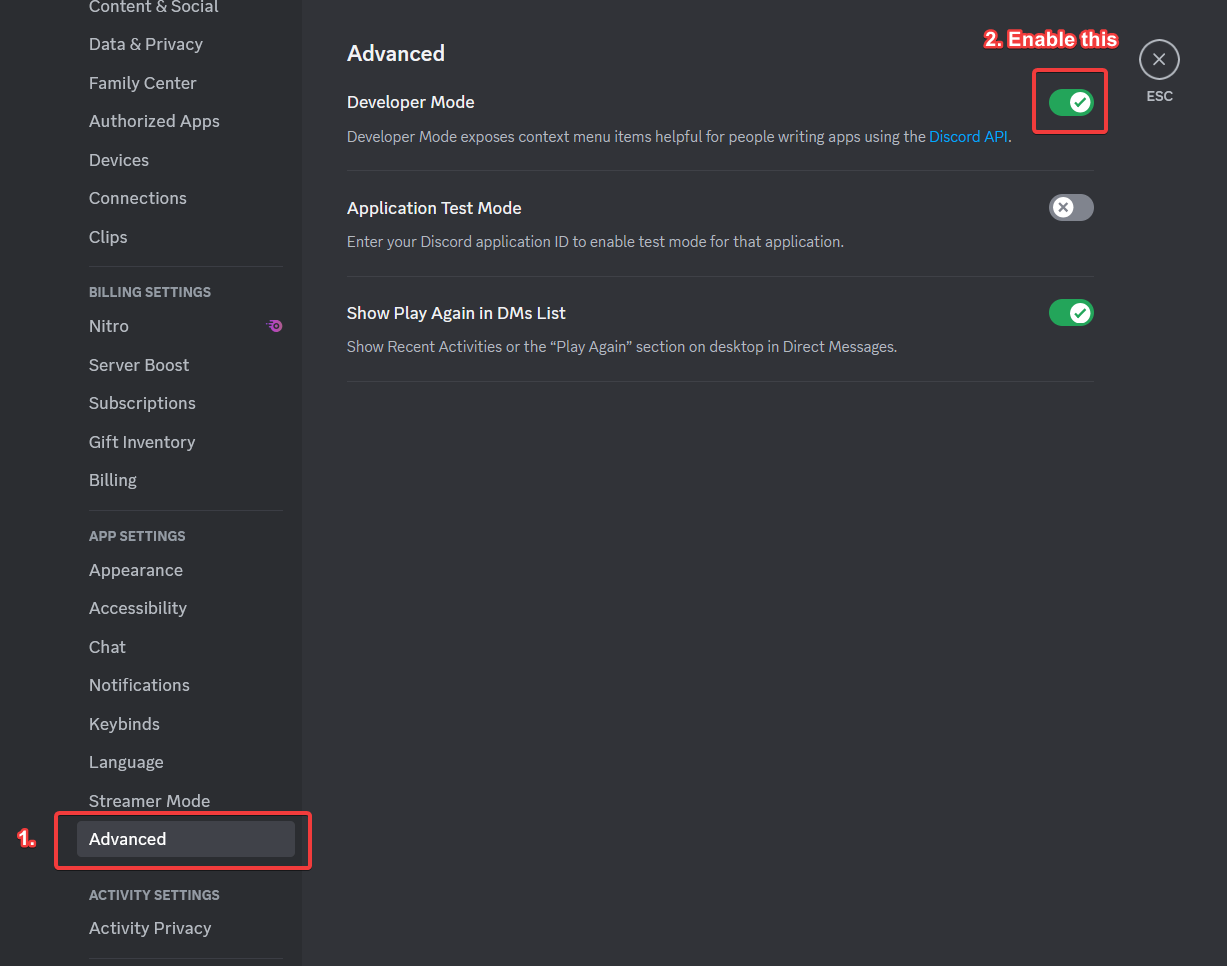
### Step 1. Make sure you have Developer Mode enabled
Head over to your Discord settings, then Advanced, and then enable Developer Mode.
You can now close your settings and continue to the next step.
### Step 2. Grab the channel/role/user ID
After you have enabled Developer Mode, you should now see a new option when right clicking a user/channel/role. Just click on the "Copy User/Channel/Role ID" button, and the ID is pasted in your clipboard. You can now place the ID where it is asking.
# Using Custom Emojis
This guide will walk you through the process of adding custom emojis to your Discord bot's configuration file.
To use a custom emoji in your Discord bot's configuration, follow these steps:
1. **Type the Emoji in Chat**
* In any Discord chat, type your custom emoji’s name (e.g., `:plexdev:`).
2. **Add a Backslash (`\`) Before the Emoji**
* Before sending the message, add a `\` before the emoji. It should look like this:
```
\:plexdev:
```
3. **Send the Message**
* Once sent, Discord will convert it into its full emoji ID format, like this:
```
<:plexdev:1038186189448036475>
```
4. **Copy the Emoji Code**
* Copy the entire output, including the `<:emoji_name:emoji_id>` format.
5. **Paste It in Your Bot’s Config**
* Use the copied emoji code in your bot’s configuration file or code where needed.
{% hint style="success" %}
Now, your bot will be able to display the custom emoji correctly!
{% endhint %}
# How to add multiple role ID's to config
You can add multiple roles in our config files like this:
`SupportRoles: ["ROLE_ID", "ROLE_ID", "ROLE_ID", "ROLE_ID"]`
{% hint style="warning" %}
Please note that adding multiple roles is only supported if it has \[] by default.
{% endhint %}
# Valid timezones
A list of all valid timezones that you can use in the bot's config.yml file for specifying which timezone the bot should display timestamps in.
| |
| -------------------------------- |
| Africa/Accra |
| Africa/Addis\_Ababa |
| Africa/Algiers |
| Africa/Asmara |
| Africa/Asmera |
| Africa/Bamako |
| Africa/Bangui |
| Africa/Banjul |
| Africa/Bissau |
| Africa/Blantyre |
| Africa/Brazzaville |
| Africa/Bujumbura |
| Africa/Cairo |
| Africa/Casablanca |
| Africa/Ceuta |
| Africa/Conakry |
| Africa/Dakar |
| Africa/Dar\_es\_Salaam |
| Africa/Djibouti |
| Africa/Douala |
| Africa/El\_Aaiun |
| Africa/Freetown |
| Africa/Gaborone |
| Africa/Harare |
| Africa/Johannesburg |
| Africa/Juba |
| Africa/Kampala |
| Africa/Khartoum |
| Africa/Kigali |
| Africa/Kinshasa |
| Africa/Lagos |
| Africa/Libreville |
| Africa/Lome |
| Africa/Luanda |
| Africa/Lubumbashi |
| Africa/Lusaka |
| Africa/Malabo |
| Africa/Maputo |
| Africa/Maseru |
| Africa/Mbabane |
| Africa/Mogadishu |
| Africa/Monrovia |
| Africa/Nairobi |
| Africa/Ndjamena |
| Africa/Niamey |
| Africa/Nouakchott |
| Africa/Ouagadougou |
| Africa/Porto-Novo |
| Africa/Sao\_Tome |
| Africa/Timbuktu |
| Africa/Tripoli |
| Africa/Tunis |
| Africa/Windhoek |
| America/Adak |
| America/Anchorage |
| America/Anguilla |
| America/Antigua |
| America/Araguaina |
| America/Argentina/Buenos\_Aires |
| America/Argentina/Catamarca |
| America/Argentina/ComodRivadavia |
| America/Argentina/Cordoba |
| America/Argentina/Jujuy |
| America/Argentina/La\_Rioja |
| America/Argentina/Mendoza |
| America/Argentina/Rio\_Gallegos |
| America/Argentina/Salta |
| America/Argentina/San\_Juan |
| America/Argentina/San\_Luis |
| America/Argentina/Tucuman |
| America/Argentina/Ushuaia |
| America/Aruba |
| America/Asuncion |
| America/Atikokan |
| America/Atka |
| America/Bahia |
| America/Bahia\_Banderas |
| America/Barbados |
| America/Belem |
| America/Belize |
| America/Blanc-Sablon |
| America/Boa\_Vista |
| America/Bogota |
| America/Boise |
| America/Buenos\_Aires |
| America/Cambridge\_Bay |
| America/Campo\_Grande |
| America/Cancun |
| America/Caracas |
| America/Catamarca |
| America/Cayenne |
| America/Cayman |
| America/Chicago |
| America/Chihuahua |
| America/Coral\_Harbour |
| America/Cordoba |
| America/Costa\_Rica |
| America/Creston |
| America/Cuiaba |
| America/Curacao |
| America/Danmarkshavn |
| America/Dawson |
| America/Dawson\_Creek |
| America/Denver |
| America/Detroit |
| America/Dominica |
| America/Edmonton |
| America/Eirunepe |
| America/El\_Salvador |
| America/Ensenada |
| America/Fort\_Nelson |
| America/Fort\_Wayne |
| America/Fortaleza |
| America/Glace\_Bay |
| America/Godthab |
| America/Goose\_Bay |
| America/Grand\_Turk |
| America/Grenada |
| America/Guadeloupe |
| America/Guatemala |
| America/Guayaquil |
| America/Guyana |
| America/Halifax |
| America/Havana |
| America/Hermosillo |
| America/Indiana/Indianapolis |
| America/Indiana/Knox |
| America/Indiana/Marengo |
| America/Indiana/Petersburg |
| America/Indiana/Tell\_City |
| America/Indiana/Vevay |
| America/Indiana/Vincennes |
| America/Indiana/Winamac |
| America/Indianapolis |
| America/Inuvik |
| America/Iqaluit |
| America/Jamaica |
| America/Jujuy |
| America/Juneau |
| America/Kentucky/Louisville |
| America/Kentucky/Monticello |
| America/Knox\_IN |
| America/Kralendijk |
| America/La\_Paz |
| America/Lima |
| America/Los\_Angeles |
| America/Louisville |
| America/Lower\_Princes |
| America/Maceio |
| America/Managua |
| America/Manaus |
| America/Marigot |
| America/Martinique |
| America/Matamoros |
| America/Mazatlan |
| America/Mendoza |
| America/Menominee |
| America/Merida |
| America/Metlakatla |
| America/Mexico\_City |
| America/Miquelon |
| America/Moncton |
| America/Monterrey |
| America/Montevideo |
| America/Montreal |
| America/Montserrat |
| America/Nassau |
| America/New\_York |
| America/Nipigon |
| America/Nome |
| America/Noronha |
| America/North\_Dakota/Beulah |
| America/North\_Dakota/Center |
| America/North\_Dakota/New\_Salem |
| America/Ojinaga |
| America/Panama |
| America/Pangnirtung |
| America/Paramaribo |
| America/Phoenix |
| America/Port-au-Prince |
| America/Port\_of\_Spain |
| America/Porto\_Acre |
| America/Porto\_Velho |
| America/Puerto\_Rico |
| America/Punta\_Arenas |
| America/Rainy\_River |
| America/Rankin\_Inlet |
| America/Recife |
| America/Regina |
| America/Resolute |
| America/Rio\_Branco |
| America/Rosario |
| America/Santa\_Isabel |
| America/Santarem |
| America/Santiago |
| America/Santo\_Domingo |
| America/Sao\_Paulo |
| America/Scoresbysund |
| America/Shiprock |
| America/Sitka |
| America/St\_Barthelemy |
| America/St\_Johns |
| America/St\_Kitts |
| America/St\_Lucia |
| America/St\_Thomas |
| America/St\_Vincent |
| America/Swift\_Current |
| America/Tegucigalpa |
| America/Thule |
| America/Thunder\_Bay |
| America/Tijuana |
| America/Toronto |
| America/Tortola |
| America/Vancouver |
| America/Virgin |
| America/Whitehorse |
| America/Winnipeg |
| America/Yakutat |
| America/Yellowknife |
| Antarctica/Casey |
| Antarctica/Davis |
| Antarctica/DumontDUrville |
| Antarctica/Macquarie |
| Antarctica/Mawson |
| Antarctica/McMurdo |
| Antarctica/Palmer |
| Antarctica/Rothera |
| Antarctica/South\_Pole |
| Antarctica/Syowa |
| Antarctica/Troll |
| Antarctica/Vostok |
| Arctic/Longyearbyen |
| Asia/Aden |
| Asia/Almaty |
| Asia/Amman |
| Asia/Anadyr |
| Asia/Aqtau |
| Asia/Aqtobe |
| Asia/Ashgabat |
| Asia/Ashkhabad |
| Asia/Atyrau |
| Asia/Baghdad |
| Asia/Bahrain |
| Asia/Baku |
| Asia/Bangkok |
| Asia/Barnaul |
| Asia/Beirut |
| Asia/Bishkek |
| Asia/Brunei |
| Asia/Calcutta |
| Asia/Chita |
| Asia/Choibalsan |
| Asia/Chongqing |
| Asia/Chungking |
| Asia/Colombo |
| Asia/Dacca |
| Asia/Damascus |
| Asia/Dhaka |
| Asia/Dili |
| Asia/Dubai |
| Asia/Dushanbe |
| Asia/Famagusta |
| Asia/Gaza |
| Asia/Harbin |
| Asia/Hebron |
| Asia/Ho\_Chi\_Minh |
| Asia/Hong\_Kong |
| Asia/Hovd |
| Asia/Irkutsk |
| Asia/Istanbul |
| Asia/Jakarta |
| Asia/Jayapura |
| Asia/Jerusalem |
| Asia/Kabul |
| Asia/Kamchatka |
| Asia/Karachi |
| Asia/Kashgar |
| Asia/Kathmandu |
| Asia/Katmandu |
| Asia/Khandyga |
| Asia/Kolkata |
| Asia/Krasnoyarsk |
| Asia/Kuala\_Lumpur |
| Asia/Kuching |
| Asia/Kuwait |
| Asia/Macao |
| Asia/Macau |
| Asia/Magadan |
| Asia/Makassar |
| Asia/Manila |
| Asia/Muscat |
| Asia/Nicosia |
| Asia/Novokuznetsk |
| Asia/Novosibirsk |
| Asia/Omsk |
| Asia/Oral |
| Asia/Phnom\_Penh |
| Asia/Pontianak |
| Asia/Pyongyang |
| Asia/Qatar |
| Asia/Qyzylorda |
| Asia/Rangoon |
| Asia/Riyadh |
| Asia/Saigon |
| Asia/Sakhalin |
| Asia/Samarkand |
| Asia/Seoul |
| Asia/Shanghai |
| Asia/Singapore |
| Asia/Srednekolymsk |
| Asia/Taipei |
| Asia/Tashkent |
| Asia/Tbilisi |
| Asia/Tehran |
| Asia/Tel\_Aviv |
| Asia/Thimbu |
| Asia/Thimphu |
| Asia/Tokyo |
| Asia/Tomsk |
| Asia/Ujung\_Pandang |
| Asia/Ulaanbaatar |
| Asia/Ulan\_Bator |
| Asia/Urumqi |
| Asia/Ust-Nera |
| Asia/Vientiane |
| Asia/Vladivostok |
| Asia/Yakutsk |
| Asia/Yangon |
| Asia/Yekaterinburg |
| Asia/Yerevan |
| Atlantic/Azores |
| Atlantic/Bermuda |
| Atlantic/Canary |
| Atlantic/Cape\_Verde |
| Atlantic/Faeroe |
| Atlantic/Faroe |
| Atlantic/Jan\_Mayen |
| Atlantic/Madeira |
| Atlantic/Reykjavik |
| Atlantic/South\_Georgia |
| Atlantic/St\_Helena |
| Atlantic/Stanley |
| Australia/ACT |
| Australia/Adelaide |
| Australia/Brisbane |
| Australia/Broken\_Hill |
| Australia/Canberra |
| Australia/Currie |
| Australia/Darwin |
| Australia/Eucla |
| Australia/Hobart |
| Australia/LHI |
| Australia/Lindeman |
| Australia/Lord\_Howe |
| Australia/Melbourne |
| Australia/NSW |
| Australia/North |
| Australia/Perth |
| Australia/Queensland |
| Australia/South |
| Australia/Sydney |
| Australia/Tasmania |
| Australia/Victoria |
| Australia/West |
| Australia/Yancowinna |
| Brazil/Acre |
| Brazil/DeNoronha |
| Brazil/East |
| Brazil/West |
| CET |
| CST6CDT |
| Canada/Atlantic |
| Canada/Central |
| Canada/Eastern |
| Canada/Mountain |
| Canada/Newfoundland |
| Canada/Pacific |
| Canada/Saskatchewan |
| Canada/Yukon |
| Chile/Continental |
| Chile/EasterIsland |
| Cuba |
| EET |
| EST |
| EST5EDT |
| Egypt |
| Eire |
| Etc/GMT |
| Etc/GMT+0 |
| Etc/GMT+1 |
| Etc/GMT+10 |
| Etc/GMT+11 |
| Etc/GMT+12 |
| Etc/GMT+2 |
| Etc/GMT+3 |
| Etc/GMT+4 |
| Etc/GMT+5 |
| Etc/GMT+6 |
| Etc/GMT+7 |
| Etc/GMT+8 |
| Etc/GMT+9 |
| Etc/GMT-0 |
| Etc/GMT-1 |
| Etc/GMT-10 |
| Etc/GMT-11 |
| Etc/GMT-12 |
| Etc/GMT-13 |
| Etc/GMT-14 |
| Etc/GMT-2 |
| Etc/GMT-3 |
| Etc/GMT-4 |
| Etc/GMT-5 |
| Etc/GMT-6 |
| Etc/GMT-7 |
| Etc/GMT-8 |
| Etc/GMT-9 |
| Etc/GMT0 |
| Etc/Greenwich |
| Etc/UCT |
| Etc/UTC |
| Etc/Universal |
| Etc/Zulu |
| Europe/Amsterdam |
| Europe/Andorra |
| Europe/Astrakhan |
| Europe/Athens |
| Europe/Belfast |
| Europe/Belgrade |
| Europe/Berlin |
| Europe/Bratislava |
| Europe/Brussels |
| Europe/Bucharest |
| Europe/Budapest |
| Europe/Busingen |
| Europe/Chisinau |
| Europe/Copenhagen |
| Europe/Dublin |
| Europe/Gibraltar |
| Europe/Guernsey |
| Europe/Helsinki |
| Europe/Isle\_of\_Man |
| Europe/Istanbul |
| Europe/Jersey |
| Europe/Kaliningrad |
| Europe/Kiev |
| Europe/Kirov |
| Europe/Lisbon |
| Europe/Ljubljana |
| Europe/London |
| Europe/Luxembourg |
| Europe/Madrid |
| Europe/Malta |
| Europe/Mariehamn |
| Europe/Minsk |
| Europe/Monaco |
| Europe/Moscow |
| Europe/Nicosia |
| Europe/Oslo |
| Europe/Paris |
| Europe/Podgorica |
| Europe/Prague |
| Europe/Riga |
| Europe/Rome |
| Europe/Samara |
| Europe/San\_Marino |
| Europe/Sarajevo |
| Europe/Saratov |
| Europe/Simferopol |
| Europe/Skopje |
| Europe/Sofia |
| Europe/Stockholm |
| Europe/Tallinn |
| Europe/Tirane |
| Europe/Tiraspol |
| Europe/Ulyanovsk |
| Europe/Uzhgorod |
| Europe/Vaduz |
| Europe/Vatican |
| Europe/Vienna |
| Europe/Vilnius |
| Europe/Volgograd |
| Europe/Warsaw |
| Europe/Zagreb |
| Europe/Zaporozhye |
| Europe/Zurich |
| GB |
| GB-Eire |
| GMT |
| GMT+0 |
| GMT-0 |
| GMT0 |
| Greenwich |
| HST |
| Hongkong |
| Iceland |
| Indian/Antananarivo |
| Indian/Chagos |
| Indian/Christmas |
| Indian/Cocos |
| Indian/Comoro |
| Indian/Kerguelen |
| Indian/Mahe |
| Indian/Maldives |
| Indian/Mauritius |
| Indian/Mayotte |
| Indian/Reunion |
| Iran |
| Israel |
| Jamaica |
| Japan |
| Kwajalein |
| Libya |
| MET |
| MST |
| MST7MDT |
| Mexico/BajaNorte |
| Mexico/BajaSur |
| Mexico/General |
| NZ |
| NZ-CHAT |
| Navajo |
| PRC |
| PST8PDT |
| Pacific/Apia |
| Pacific/Auckland |
| Pacific/Bougainville |
| Pacific/Chatham |
| Pacific/Chuuk |
| Pacific/Easter |
| Pacific/Efate |
| Pacific/Enderbury |
| Pacific/Fakaofo |
| Pacific/Fiji |
| Pacific/Funafuti |
| Pacific/Galapagos |
| Pacific/Gambier |
| Pacific/Guadalcanal |
| Pacific/Guam |
| Pacific/Honolulu |
| Pacific/Johnston |
| Pacific/Kiritimati |
| Pacific/Kosrae |
| Pacific/Kwajalein |
| Pacific/Majuro |
| Pacific/Marquesas |
| Pacific/Midway |
| Pacific/Nauru |
| Pacific/Niue |
| Pacific/Norfolk |
| Pacific/Noumea |
| Pacific/Pago\_Pago |
| Pacific/Palau |
| Pacific/Pitcairn |
| Pacific/Pohnpei |
| Pacific/Ponape |
| Pacific/Port\_Moresby |
| Pacific/Rarotonga |
| Pacific/Saipan |
| Pacific/Samoa |
| Pacific/Tahiti |
| Pacific/Tarawa |
| Pacific/Tongatapu |
| Pacific/Truk |
| Pacific/Wake |
| Pacific/Wallis |
| Pacific/Yap |
| Poland |
| Portugal |
| ROC |
| ROK |
| Singapore |
| Turkey |
| UCT |
| US/Alaska |
| US/Aleutian |
| US/Arizona |
| US/Central |
| US/East-Indiana |
| US/Eastern |
| US/Hawaii |
| US/Indiana-Starke |
| US/Michigan |
| US/Mountain |
| US/Pacific |
| US/Pacific-New |
| US/Samoa |
| UTC |
| Universal |
| W-SU |
| WET |
| Zulu |
# Keep Your Node.js Application Running 24/7
To keep a Node.js application running 24/7 on your VPS, you can use the screen command. Follow these steps:
## Option 1: Using screen
### 1. **Create a Screen Session**
A screen session allows the bot to keep running even when you close the terminal. To start a new screen session, run:
```bash
screen -S PlexTickets
```
Now, you're inside the new screen session. *(You can replace PlexTickets with a name of your choice)*
### 2. **Start the Bot**
1. Navigate to the folder where your application is installed:
```bash
cd /path/to/plex-tickets
```
*(Replace `/path/to/plex-tickets` with the actual path, e.g., `/home/PlexTickets`)*
2. Start the application by running:
```bash
node .
```
### 3. **Detach from the Screen**
Once the bot is running, you can safely detach from the screen session without stopping the bot. To do this:
* Press `CTRL + A`, then press `D (All at the same time)`
You will return to the regular terminal, and the bot will continue running in the background.
### 4. **Reconnect to the Screen**
If you ever need to access the bot or restart it, follow these steps:
1. List all active screen sessions:
```bash
screen -ls
```
You’ll see a list of active screens, something like:
```
12345.PlexTickets
```
2. Reconnect to the screen session by running:
```bash
screen -r
```
*(Replace `` with the actual ID, e.g., `12345`)*
### 5. **Stop or Restart the Application**
* To stop the application, simply press `CTRL + C` inside the screen session.
* To restart, run the `node .` command again.
## Option 2: Using tmux
### 1. Install tmux
First you have to install tmux to your vps using:
```bash
sudo apt install tmux -y
```
### 2. Create a tmux session
To create a tmux session you just have to run:
```bash
tmux
```
### 3. Start the bot
Next you have to start the bot by running:
```bash
node .
```
in the plex directory.
### 4. Detach session
To detach the session you have to press `ctrl+B` then D.
### 5. Reattach the session
To attach the session again you have to run the command:
```bash
tmux attach -t ID
```
If you dont know the ID yet:
```bash
tmux ls
```
### 6. Stop or restart the bot
To restart or stop the but you just have to reattach the session, then press `ctrl+C`
{% hint style="warning" %}
The application will stop if you restart or shut down the VPS. After rebooting, repeat the steps to start the bot. Keep the VPS running to ensure the bot is active 24/7.
{% endhint %}
# Categories & Panels
### Understanding the Basics
The ticket system is built around two main components:
1. **Ticket Panels** - These are the embed messages users interact with to create tickets
2. **Ticket Categories** - These define the different types of tickets users can create
Each panel can include multiple categories, and the same category can be used across different panels.
### Ticket Panels Configuration
Panels are defined in the `TicketPanels` section of your `config.yml` file. Here's how to set up a panel:
```yaml
TicketPanels:
Panel1: # This is the panel ID (must be unique)
Name: "Support Panel" # Display name for the panel
Categories: ["TicketCategory1", "TicketCategory3"] # List of category IDs to include
Embed: # Embed appearance settings
Title: "Support Tickets" # Panel title
Description: "> If you need any assistance click on the button corresponding to the type of ticket you wish to open."
Color: "#5e99ff" # Hex color code, leave blank to use bot default
PanelImage: "https://i.imgur.com/wOifew6.png" # Large image in the embed
CustomThumbnailURL: "" # Small image in the corner of the embed
Timestamp: false # Whether to display timestamp
Footer: # Footer settings
Enabled: true
CustomIconURL: "" # Footer icon
text: "" # Footer text
```
#### Adding Multiple Panels
You can create unlimited panels, To add another panel, simply add a new entry under `TicketPanels`:
```yaml
TicketPanels:
Panel1:
# Panel1 configuration...
Panel2: # This is the panel ID (must be unique)
Name: "Applications Panel"
Categories: ["TicketCategory2", "TicketCategory5"]
Embed:
Title: "Staff Applications"
Description: "Click a button below to apply for a staff position."
Color: "#43B581"
PanelImage: ""
CustomThumbnailURL: ""
Footer:
Enabled: true
text: "Plex Development"
CustomIconURL: ""
Timestamp: true
```
Each panel can be sent to different channels using the `/panel` command with the panel ID.
### Ticket Categories Configuration
Categories define the different types of tickets users can create. They're configured in the `TicketCategories` section:
```yaml
TicketCategories:
TicketCategory1: # This is the category ID (must be unique)
CategoryName: "Example 1" # This will be the button and ticket name/category
Description: "" # Category description, This only works if SelectMenu is enabled, Leave blank to disable
ParentCategoryID: "731044694590750821" # Discord category where tickets will be created
EmbedTitle: "Support Ticket ({category})" # Use {category} to get the category name for the ticket opened
EmbedMessage: "> Thank you for contacting support.\n> Please describe your issue and await a response." # Use {user} to get the user that created the ticket, {createdAt} to get when the ticket was created using a Discord timestamp
CategoryEmoji: "" # Leave blank for no emoji
ButtonColor: "Green" # Blurple, Gray, Green, Red
SupportRoles: ["731044651078910012"] # Users with these roles can view tickets in this category, You can add multiple roles
MentionSupportRoles: false # Mention all the Support Roles in new tickets?
ChannelName: "ticket-{username}" # Variables: {total-tickets}, {username}, {user-id}
LogsChannelID: "CHANNEL_ID" # Channel ID for category-specific logs (leave empty to use the default logs channel)
RequiredRoles: [] # Require the user to have a specific role to open a ticket in this category? You can add multiple, leave blank to disable
Questions: [] # Questions asked when creating a ticket in a modal
```
#### Adding More Categories
You can create unlimited categories, To add a new category, add a new entry under `TicketCategories`:
```yaml
TicketCategories:
# Existing categories...
TicketCategory4:
CategoryName: "Feature Request"
Description: "Suggest a new feature"
ParentCategoryID: "731044694590750821"
# Additional settings...
```
Once added, you can include the new category in any panel by adding its ID to the panel's `Categories` list.
### Adding Ticket Questions
Questions allow you to gather specific information when a user creates a ticket. Add questions to a category like this:
```yaml
Questions:
- customId: "bugDescription" # Unique identifier (no spaces)
required: true # Whether an answer is required
minLength: 20 # Minimum character count (optional)
question: "Describe the bug in detail" # Question text
placeholder: "Please provide as much information as possible" # Placeholder text
style: "Paragraph" # "Paragraph" for long text, "Short" for single line
- customId: "productVersion"
required: true
minLength: 2
question: "Which version of the product?"
placeholder: "1.0.0"
style: "Short"
```
**Important Notes:**
* You can add up to 5 questions per category (Discord limitation)
* Each `customId` must be unique and contain no spaces
* Valid styles are "Paragraph" or "Short"
### Working Hours Placeholders
If you have working hours enabled, you can display them in your panel descriptions using these placeholders:
```
{workingHours-startTime-Monday} {workingHours-endTime-Monday}
{workingHours-startTime-Tuesday} {workingHours-endTime-Tuesday}
{workingHours-startTime-Wednesday} {workingHours-endTime-Wednesday}
{workingHours-startTime-Thursday} {workingHours-endTime-Thursday}
{workingHours-startTime-Friday} {workingHours-endTime-Friday}
{workingHours-startTime-Saturday} {workingHours-endTime-Saturday}
{workingHours-startTime-Sunday} {workingHours-endTime-Sunday}
```
Example usage:
```yaml
Description: "Our support team is available:\nMonday: {workingHours-startTime-Monday} - {workingHours-endTime-Monday}\nTuesday: {workingHours-startTime-Tuesday} - {workingHours-endTime-Tuesday}"
```
### Advanced Configuration Examples
#### Example: Support Panel with Multiple Categories
```yaml
TicketPanels:
SupportPanel:
Name: "Customer Support"
Categories: ["GeneralSupport", "TechnicalHelp", "BillingIssues"]
Embed:
Title: "Need Help?"
Description: "Please select the appropriate category for your issue. Our team will respond as soon as possible.\n\n**Working Hours:**\nWeekdays: {workingHours-startTime-Monday} to {workingHours-endTime-Monday}"
Color: "#3498db"
PanelImage: "https://i.imgur.com/example.png"
Timestamp: true
Footer:
Enabled: true
text: "Response time: Usually within 24 hours"
```
#### Example: Application Form with Questions
```yaml
TicketCategories:
StaffApplication:
CategoryName: "Staff Application"
Description: "Apply to join our team"
ParentCategoryID: "123456789012345678"
EmbedTitle: "Staff Application ({category})"
EmbedMessage: "> Thank you for applying to join our team.\n> Your application has been submitted and will be reviewed soon."
CategoryEmoji: "👥"
ButtonColor: "Blurple"
SupportRoles: ["123456789012345678"]
MentionSupportRoles: true
ChannelName: "application-{username}"
RequiredRoles: ["123456789012345678"] # Member role required
Questions:
- customId: "experience"
required: true
minLength: 50
question: "What relevant experience do you have?"
placeholder: "Tell us about your background and skills"
style: "Paragraph"
- customId: "availability"
required: true
question: "What is your weekly availability?"
placeholder: "Hours per week and timezone"
style: "Short"
- customId: "whyJoin"
required: true
minLength: 100
question: "Why do you want to join our team?"
placeholder: "What motivates you to apply for this position?"
style: "Paragraph"
```
By configuring these elements, you can create a customized ticket system tailored to your server's needs. Remember to use the `/panel` command to send your panels to the appropriate channels after setting up your configuration.
# AI AutoResponse
The AI AutoResponse system uses AI to automatically respond to common user questions and support requests. Unlike traditional keyword-based systems, this AI-powered solution understands the **intent** and **context** of user messages, providing much more accurate and helpful responses.
### Overview
The system analyzes every message sent in your Discord server and determines if it matches any of your predefined responses. When a match is found with sufficient confidence, the bot automatically replies with the appropriate information, helping to reduce support workload while providing instant assistance to users.
#### Key Benefits
* Uses OpenAI's language models to understand intent, not just keywords
* Provides immediate help to users 24/7
* Handles common questions automatically, freeing up staff time
* Detailed statistics help optimize response effectiveness
* Built-in buttons to gauge response quality and improve the system
### How It Works
#### 1. Message Analysis
When a user sends a message, the AI AutoResponse system:
1. Ensures the system is enabled and the user/channel meets criteria
2. Skips analysis for users with support roles to avoid interfering with staff responses
3. Sends the message to OpenAI for intelligent analysis
4. Compares against your configured response triggers
5. Only responds if confidence level meets the threshold
#### 2. AI Intelligence
The system uses a sophisticated prompt that instructs the AI to:
* Understand the **context** and **intent** of messages
* Identify the user's actual need or question
* Match against available response categories
* Provide a confidence score (0.0 to 1.0)
* Explain the reasoning behind the match
#### 3. Response Delivery
When a match is found:
* The bot replies with the configured message (text or embed format)
* Feedback buttons are added for user input
* The interaction is logged to the database
* Analytics data is updated in real-time
### Configuration
#### Basic Settings
```yaml
AIAutoResponse:
Enabled: true # Enable/disable the entire system
OnlyInTickets: false # Restrict to ticket channels only
OpenAIAPIKey: "your_api_key_here" # Required OpenAI API key
Model: "gpt-3.5-turbo" # AI model to use (gpt-3.5-turbo or gpt-4)
ConfidenceThreshold: 0.7 # Minimum confidence to trigger response (0.0-1.0)
```
#### Response Configuration
Each response is defined with the following structure:
```yaml
Responses:
response_key_name:
Triggers: ["keyword1", "keyword2", "phrase"] # Help AI understand what to match
Message: "Your response message here" # What the bot will say
Type: "EMBED" # Response format: "EMBED" or "TEXT"
Color: "#FF5D5D" # Embed color (only for EMBED type)
```
**Response Types**
**EMBED Format:**
* Professional appearance with title, description, and footer
* Customizable colors and styling
* Best for important information or detailed responses
**TEXT Format:**
* Simple text message
* Faster and more casual
* Best for quick answers or brief information
#### Understanding Triggers
The `Triggers` array helps guide the AI's understanding but **does not work like traditional keywords**. Instead:
* **Context Clues**: Triggers help the AI understand what topics this response covers
* **Intent Matching**: The AI looks for the underlying intent, not exact word matches
* **Flexible Matching**: Users can phrase questions differently and still get matched
**Example: Server Connection Response**
```yaml
server_connection:
Triggers: ["server IP", "how to connect", "server address", "join server", "connection"]
Message: "Our server IP is **play.example.com**. You can connect using any Minecraft client!"
Type: "EMBED"
Color: "#00FF00"
```
**This will match messages like:**
* "what's the server ip?"
* "how do i connect to your minecraft server?"
* "can't join the server, what's the address?"
* "server connection info please"
* "where do I play minecraft?"
**But won't match unrelated messages like:**
* "what's the weather today?"
* "how are you doing?"
* "random conversation"
#### Button Settings
```yaml
ButtonSettings:
Enabled: true # Show feedback buttons
HelpfulButton: "👍 This helped!" # Positive feedback button text
NotHelpfulButton: "👎 Still need help" # Negative feedback button text
ButtonTimeout: 300 # How long buttons stay active (seconds)
```
#### Analytics Configuration
```yaml
Statistics:
Enabled: true # Track response statistics
LogsChannelID: "CHANNEL_ID" # Channel for logging AI activity
Analytics:
TrackUsage: true # Track which responses are used most
TrackAccuracy: true # Track user feedback quality
TrackUserSatisfaction: true # Overall satisfaction metrics
MonthlyReports: true # Generate monthly reports
```
### Best Practices
#### Writing Effective Triggers
1. **Be Descriptive**: Include various ways users might ask about the topic
2. **Think Like Users**: Consider different phrasings and terminology
3. **Include Problems**: Add trigger phrases for issues users might have
4. **Avoid Overlap**: Make sure different responses have distinct trigger contexts
**Good Example:**
```yaml
password_reset:
Triggers: ["password reset", "forgot password", "can't login", "account recovery", "lost password", "login issues"]
```
**Poor Example:**
```yaml
password_reset:
Triggers: ["password"] # Too vague, might match unrelated messages
```
#### Setting Confidence Thresholds
* **0.9 - 1.0**: Extremely strict, only exact matches
* **0.7 - 0.9**: Recommended range, good balance of accuracy and coverage
* **0.5 - 0.7**: More lenient, may catch more questions but risk false positives
* **Below 0.5**: Too loose, likely to cause incorrect responses
### Command Usage
#### `/ai-analytics overview`
View overall system performance:
* Total responses sent
* Monthly statistics
* User feedback summary
* Success rates
#### `/ai-analytics responses`
Analyze individual response performance:
* Usage frequency for each response
* Average confidence scores
* User satisfaction rates
* Most/least effective responses
#### `/ai-analytics accuracy`
Review system accuracy:
* Helpful vs not helpful feedback breakdown
* Confidence correlation with user satisfaction
* Areas needing improvement
#### `/ai-analytics monthly [month] [year]`
Generate monthly reports:
* Historical performance data
* Trend analysis
* Response effectiveness over time
### Troubleshooting
#### Common Issues
**AI Not Responding to Questions:**
1. Check if `ConfidenceThreshold` is too high
2. Verify OpenAI API key is valid
3. Ensure user isn't staff (staff messages are ignored)
4. Check if `OnlyInTickets` is enabled when testing outside tickets
**Too Many False Positives:**
1. Increase `ConfidenceThreshold` value
2. Review and refine trigger keywords
3. Make response contexts more specific
4. Check for overlapping response topics
**Low User Satisfaction:**
1. Review response messages for clarity
2. Check if responses actually answer the questions
3. Consider adding more specific responses for common issues
4. Update outdated information in responses
####
The new system should be significantly more accurate and useful than the old keyword matching approach.
# Markdown Guide
Markdown Guide for product descriptions
### Headings
Use `#` symbols followed by a space to create headings. The number of `#` symbols determines the heading level.
```
# Heading 1
## Heading 2
### Heading 3
#### Heading 4
```
Example
## Heading 1
### Heading 2
#### Heading 3
**Heading 4**
### **Text formatting**
Plex Store currently support most markdown formatting. Simply add `**`, `_`, or `~~` around text to format it.
| Style | How to write it | Result |
| ------------- | ------------------------ | ----------------- |
| Bold | `**bold**` or `__bold__` | **bold** |
| Italic | `*italic*` or `_italic_` | *italic* |
| Strikethrough | `~~strikethrough~~` | ~~strikethrough~~ |
You can also combine them. For example, write `**_bold and italic_**` to get ***bold and italic*** text.
### Blockquotes
Use `>` to create a blockquote.
> This is a blockquote.
```
> This is a blockquote.
```
### Lists
#### Ordered Lists
To create a ordered list, add line items with numbers followed by periods.
1. Line 1
2. Line 2
3. Line 3
4. Line 4
```md
1. Line 1
2. Line 2
3. Line 3
4. Line 4
```
#### Unordered List
To create a unordered list, add dashes (`-`), asterisks (`*`), or plus signs (`+`) in front of line items.
* First item
* Second item
* Third item
* Fourth item
```md
- First item
- Second item
- Third item
- Fourth item
```
You can also nest them by adding indents on the list items:
* First item
* Second item
* Additional item
* Additional item
* Third item
```md
- First item
- Second item
- Additional item
- Additional item
- Third item
```
### Links
* **Inline Links**: `[Link Text](URL)`
* **Reference Links**: `[Link Text][id]` and `[id]: URL`
```
[GitHub](https://github.com)
[Google][1]
[1]: https://www.google.com
```
### Images
* **Inline Images**: ``
* **Reference Images**: `![Alt Text][id]` and `[id]: Image URL`
```

![Google Logo][1]
[1]: https://www.google.com/images/branding/googlelogo/1x/googlelogo_color_272x92dp.png
```
### Code
* **Inline Code**: Use backticks `` ` `` to wrap inline code.
* **Code Blocks**: Use triple backticks to create code blocks.
``function example() {
console.log("This is a code block.");
}``
### Markdown Syntax Highlighting
You can specify the language after the opening backticks in a code block.
```
``javascript
function helloWorld() {
console.log("Hello, World!");
}``
```
### Tables
Use pipes `|` and hyphens `-` to create tables. The hyphens separate the header row from the data rows.
```
| Tables | Are | Cool |
| ------------- |:-------------:| -----:|
| row 1 | content | $2600 |
| row 2 | content | $3600 |
| row 3 | content | $4200 |
```
### Custom Containers
```
:::info
This is an information container.
:::
:::success
This is a success container.
:::
:::warning
This is a warning container.
:::
:::danger
This is a danger container.
:::
```
# Email System
Plex Store comes with SendGrid and SMTP support.
**What is SendGrid?**
SendGrid is a service that helps you send emails from your apps or websites, like receipts, password resets, or newsletters. It’s free to get started and easy to set up—just create an account and use an API key to start sending emails quickly and securely.
**What is SMTP?**
SMTP stands for Simple Mail Transfer Protocol. It is a protocol used for sending email messages between servers. SMTP uses a process of routing emails from the sender's server to the recipient's server using a series of commands and responses to ensure the message's delivery. It's an essential component of the email system, providing a way for servers to communicate and exchange email data.
\
Plex Store uses emails for the following:
* When a customer purchases an item it sends them a confirmation email with a list of what they bought.
* General notifications
## Option 1: Using SendGrid
### How to Get an API Key from SendGrid (Free)
### Step 1: Create a SendGrid Account
1. **Visit SendGrid**: Go to [SendGrid's website](https://sendgrid.com/).
2. **Sign Up**: If you don’t have an account, click on the **Sign Up** button. Fill out the required information. (You will most likely need to add 2FA, or verify your phone number)
*Image Description*: An image showing the SendGrid homepage with the **Sign Up** button highlighted.
3. **Choose a Free Plan**: During the sign-up process, choose the free plan.
### Step 2: Log In to Your SendGrid Account
1. **Log In**: After signing up, log in to your SendGrid account using your credentials.
### Step 3: Navigate to API Keys
1. **Access the Dashboard**: Once logged in, you’ll be directed to the SendGrid dashboard.
*Image Description*: The SendGrid dashboard, highlighting the left-side navigation panel.
2. **Go to API Keys**: On the left sidebar, click on **Settings** and then select **API Keys** from the dropdown menu.
### Step 4: Create an API Key
1. **Create a New API Key**: Click on the **Create API Key** button.
2. **Name Your API Key**: A prompt will appear asking you to name your API Key. Enter a descriptive name, such as “MyAppAPIKey”.
3. Click the **Create & View** button. Your API Key will be displayed. **Make sure to copy and store it securely**. You won’t be able to view it again.
### Step 5: Copy the API Key into Your `config.yml` File
1. Open the `config.yml` and paste the API Key wherever you need it.
## Option 2: Using SMTP
### How to get SMTP credentials (Free or Paid)
This guide will teach you how to make a SMTP2GO account and connecting your domain. If you already have a SMTP server, skip directly to [Step 5](#step-5-fill-out-the-config.yml).
### Step 1: Creating an [SMTP2GO](https://www.smtp2go.com/) account
1. **Visit smtp2go:** Go to [SMTP2GO's website](https://www.smtp2go.com/).
2. Choose the free plan.
3. **Register**: Click on the Sign up button on the top right corner, and fill out the required information.
{% hint style="warning" %}
SMTP2GO does not support any shared/public email addresses. You may get a error saying: Error code 6 - Emails on the shared domain cannot be used. If this is the case, try another email from another domain.
{% endhint %}
4. Verify your email by checking your inbox.
### Step 2: Log in to your account
If you are not logged in yet, [login to SMTP2GO](https://app.smtp2go.com/login/).
### Step 3: Connect your domain
1. Go to Sending -> Verified senders and click on "Add sender domain".
2. Connect your domain based on the instructions. This will require editing your DNS records.
### Step 4: Create an SMTP user
1. Go to Sending -> SMTP users and click on "Add SMTP user".
Fill out the required information, then click on the blue "Add SMTP User" button.
### Step 5: Fill out the config.yml
1. Open the config.yml of the store.
2. Go to the email settings.
3. Set **provider** to "smtp"
4. Set the SMTP details you got from SMTP2GO or from your SMTP provider. Example:
```yaml
smtp:
host: "mail.example.com"
port: 587
secure: true
user: "your-email@example.com"
password: "your-smtp-password"
```
SMTP2GO Example:
```yaml
smtp:
host: "mail.smtp2go.com"
port: 443
secure: true
user: "your-email@example.com"
password: "your-smtp-password"
```
{% hint style="success" %}
Congrats! You have successfully setup emails for Plex Store.
{% endhint %}
# How to update
This is a guide on how to update Plex Store. Follow these simple steps to update Plex Store while keeping your configuration and data intact.
{% hint style="danger" %}
Never delete the `uploads` folder, it stores all essential data, including product files, product banners, images, and more. Deleting this folder will result in the loss of these important assets. Always ensure that the `uploads` folder remains intact when updating your bot.
{% endhint %}
### 1. **Backup Your Important Files**
Before you begin, make sure to back up your current configuration and any important data.
* **Backup `config.yml`**: This file contains your bot's configuration settings. Make a copy of it and store it somewhere safe.
* **Backup the `uploads` Folder**: If you have an `uploads` folder where files are stored, back this up as well. This is where all the product files and product banners are stored, and more.
### **2. Download the New Update**
Download the latest version of the product from where you have access.
### **3. Replace Existing Files**
Once you've downloaded the update:
* Extract the new files.
* **Replace all existing files** in your product's directory with the new ones you just downloaded.
* **Do not replace**:
* The `config.yml` file
* The `uploads` folder (if it exists and you want to feel extra safe)
### **4. Update Your config.yml File**
You’ll need to merge your old configuration with any new settings:
* **Open the old `config.yml`**: Use a text editor like Notepad, VSCode, etc.
* **Open the new `config.yml`**: Open the new version of this file in another text editor.
* **Compare and Update**: Manually copy your old configuration settings into the new `config.yml` file.
* Alternatively, use a tool like [DiffChecker](https://www.diffchecker.com/) to easily spot the differences between the old and new files and merge them accordingly.
### 5. Install New Dependencies
Sometimes updates come with new dependencies. To install them:
* Open a terminal or command prompt.
* Navigate to your bot's directory.
* Run the following command:
```
npm install
```
This will install any new dependencies required by the updated bot.
### 6. Restart Your Bot
After completing the steps above, you can now start your bot:
* Use the command you usually use to start the bot, such as:
```
node index.js
```
or if you are using regular discord bot hosting/pterodactyl, then just use the start button on the panel.
{% hint style="success" %}
That's it! Your bot is now updated with minimal hassle. If you encounter any issues, double-check that your configuration settings are correct and that all necessary files have been updated.
{% endhint %}
# API
### **Obtaining the API Key**
To obtain the API key:
1. Navigate to the **Settings** page in the **Staff Panel**.
2. Scroll down to the **API Settings** section.
3. Ensure the **Enable API** checkbox is checked.
4. Set your desired API key in the input field labeled "Enter API Key".
5. Save the settings by clicking the **Save Settings** button.
{% hint style="warning" %}
The API key is private and should not be shared with anyone. It can be any string you choose, but it’s important to make sure it’s secure (e.g., a long and complex password-like string).
{% endhint %}
***
### Endpoint: `/api/users/:userId` (GET)
This API endpoint allows you to retrieve detailed information about a user based on their Discord ID. The data returned includes user information, the contents of their cart, and the products/serials they own.
#### URL Parameters
* **userID** (string): The Discord ID or User ID of the user whose information you want to retrieve.
#### Headers
* **x-api-key** (string): This is required for authentication. The API key must be included in the header to access this endpoint.
#### Success Response
* **Status Code:** `200 OK`
* **Response Body:**
```json
{
"id": "123456789012345678",
"discordID": "123456789012345678",
"userId": "507f1f77bcf86cd799439011",
"username": "JohnDoe",
"displayName": "JohnDoe",
"banned": false,
"email": "user@example.com",
"emailVerified": true,
"totalSpent": 150.00,
"joinedAt": "2024-01-15T14:56:29.000Z",
"authMethod": "discord",
"cart": [
{
"_id": "507f191e810c19729de860ea",
"name": "Product 1",
"productType": "digitalPaid"
},
{
"_id": "507f191e810c19729de860eb",
"name": "Product 2",
"productType": "digitalFree"
}
],
"ownedProducts": [
{
"_id": "507f191e810c19729de860ec",
"name": "Paid product",
"productType": "digitalPaid"
},
{
"_id": "507f191e810c19729de860ed",
"name": "Free product",
"productType": "digitalFree"
},
{
"_id": "507f191e810c19729de860ed",
"name": "Service product",
"productType": "service"
}
],
"ownedSerials": [
{
"productId": "507f191e810c19729de860ec",
"productName": "Premium License",
"key": "XXXX-XXXX-XXXX-XXXX",
"purchaseDate": "2024-01-20T10:30:00.000Z"
}
]
}
```
#### Possible Error Responses:
```json
{
"error": "INVALID_API_KEY"
}
{
"error": "USER_NOT_FOUND"
}
{
"error": "SERVER_ERROR"
}
```
#### Axios Example:
```javascript
const axios = require('axios');
const getUserData = async (userId) => {
try {
const response = await axios.get(`https://your-api-domain.com/api/users/${userId}`, {
headers: {
'x-api-key': 'your-api-key' // Replace with your actual API key
}
});
console.log('User Data:', response.data);
} catch (error) {
// Handle the error simply
console.error('Error fetching user data:', error.response ? error.response.data : error.message);
}
};
getUserData('123456789012345678'); // Replace with the actual Discord User ID
```
***
### Endpoint: `/api/users/:userId/addproduct/:urlId` (POST)
This API endpoint allows you to add a specific product to a user's owned products list based on their Discord ID and the product's unique `urlId`.
#### URL Parameters
* **`userId`(string)**:\
The Discord ID or User ID of the user to whom the product should be added.
* **`urlId` (string)**:\
The unique identifier for the product to be added. This is typically a URL-safe string such as `product-name`.
#### Headers
* **x-api-key** (string): This is required for authentication. The API key must be included in the header to access this endpoint.
#### Success Response
* **Status Code:** `200 OK`
* **Response Body:**
```json
{
"message": "PRODUCT_ADDED_SUCCESSFULLY",
"user": {
"id": "123456789012345678",
"discordID": "123456789012345678",
"email": "user@example.com",
"authMethod": "discord",
"ownedProducts": [ // A list of all products the user owns
{
"_id": "507f191e810c19729de860ea",
"name": "Premium Package",
"productType": "digitalPaid",
"urlId": "premium-package"
},
{
"_id": "507f191e810c19729de860eb",
"name": "Test Product",
"productType": "digitalPaid",
"urlId": "test-product"
}
]
},
"product": { // The product that was added
"name": "Test Product",
"urlId": "test-product"
}
}
```
#### Possible Error Responses:
```json
{
"error": "INVALID_API_KEY"
}
{
"error": "USER_NOT_FOUND"
}
{
"error": "PRODUCT_NOT_FOUND"
}
{
"error": "PRODUCT_ALREADY_OWNED"
}
{
"error": "SERVER_ERROR"
}
```
#### Axios Example:
```javascript
const axios = require('axios');
const addProductToUser = async (userId, urlId) => {
try {
const response = await axios.post(`https://your-api-domain.com/api/users/${userId}/addproduct/${urlId}`, {}, {
headers: {
'x-api-key': 'your-api-key' // Replace with your actual API key
}
});
console.log('Product Added:', response.data);
} catch (error) {
// Handle the error
console.error('Error adding product to user:', error.response ? error.response.data : error.message);
}
};
// Example usage
addProductToUser('123456789', 'test-product'); // Replace with the actual Discord User ID and product urlId
```
***
### Endpoint: `/api/users/:userId/removeproduct/:urlId` (POST)
This API endpoint allows you to remove a specific product from a user's owned products list based on their Discord ID and the product's unique `urlId`.
#### URL Parameters
* **`userId`(string)**:\
The Discord ID or User ID of the user to whom the product should be added.
* **`urlId` (string)**:\
The unique identifier for the product to be added. This is typically a URL-safe string such as `product-name`.
#### Headers
* **x-api-key** (string): This is required for authentication. The API key must be included in the header to access this endpoint.
#### Success Response
* **Status Code:** `200 OK`
* **Response Body:**
```json
{
"message": "PRODUCT_REMOVED_SUCCESSFULLY",
"user": {
"id": "123456789012345678",
"discordID": "123456789012345678",
"email": "user@example.com",
"authMethod": "discord",
"ownedProducts": [ // A list of all products the user owns
{
"_id": "507f191e810c19729de860ea",
"name": "Premium Package",
"productType": "digitalPaid",
"urlId": "premium-package"
}
]
},
"product": { // The product that was removed
"name": "Test Product",
"urlId": "test-product"
}
}
```
#### Possible Error Responses:
```json
{
"error": "INVALID_API_KEY"
}
{
"error": "USER_NOT_FOUND"
}
{
"error": "PRODUCT_NOT_FOUND"
}
{
"error": "PRODUCT_NOT_OWNED"
}
{
"error": "SERVER_ERROR"
}
```
#### Axios Example:
```javascript
const axios = require('axios');
const removeProductFromUser = async (userId, urlId) => {
try {
const response = await axios.post(`https://your-api-domain.com/api/users/${userId}/removeproduct/${urlId}`, {}, {
headers: {
'x-api-key': 'your-api-key' // Replace with your actual API key
}
});
console.log('Product Removed:', response.data);
} catch (error) {
// Handle the error
console.error('Error removing product from user:', error.response ? error.response.data : error.message);
}
};
// Example usage
removeProductFromUser('123456789', 'test-product'); // Replace with the actual Discord User ID and product urlId
```
***
### Endpoint: `/api/discounts/create` (POST)
This API endpoint allows you to create a new discount code for your store, specifying its name, discount percentage, maximum uses, and expiration date.
#### **Request Body**
| Field | Type | Required | Description |
| -------------------- | ------ | -------- | ---------------------------------------------------------------------------------- |
| `name` | string | Yes | The unique name of the discount code. |
| `discountPercentage` | number | Yes | The percentage discount (e.g., `10` for a 10% discount). |
| `maxUses` | number | No | The maximum number of times the code can be used. Leave empty for unlimited. |
| `expiresAt` | string | No | The expiration date of the code in ISO 8601 format. Leave empty for no expiration. |
#### Headers
* **x-api-key** (string): This is required for authentication. The API key must be included in the header to access this endpoint.
#### Success Response
* **Status Code:** `200 OK`
* **Response Body:**
```json
{
"message": "DISCOUNT_CODE_CREATED_SUCCESSFULLY",
"discountCode": {
"name": "NEWYEAR2025",
"discountPercentage": 20,
"maxUses": 100,
"expiresAt": "2025-12-31T23:59:59.000Z"
}
}
```
#### Possible Error Responses:
```json
{
"error": "INVALID_API_KEY"
}
{
"error": "DISCOUNT_CODE_ALREADY_EXISTS"
}
{
"error": "SERVER_ERROR"
}
```
#### Axios Example:
```javascript
const axios = require('axios');
const createDiscountCode = async () => {
try {
const response = await axios.post(
'https://your-api-domain.com/api/discounts/create',
{
name: 'NEWYEAR2025',
discountPercentage: 20,
maxUses: 100,
expiresAt: '2025-12-31T23:59:59.000Z'
},
{
headers: {
'x-api-key': 'your-api-key' // Replace with your actual API key
}
}
);
console.log('Discount Code Created:', response.data);
} catch (error) {
console.error('Error creating discount code:', error.response ? error.response.data : error.message);
}
};
// Example usage
createDiscountCode();
```
***
### Endpoint: `/api/payments/:transactionID` (GET)
This API endpoint allows you to retrieve detailed payment information based on a specific transaction ID. The returned data includes details about the payment method, user information, products purchased, and any discounts applied.
#### URL Parameters
* **transactionID** (string): The unique transaction ID associated with the payment you want to retrieve.
#### Headers
* **x-api-key** (string): This is required for authentication. The API key must be included in the header to access this endpoint.
#### Success Response
* **Status Code:** `200 OK`
* **Response Body:**
```json
{
"ID": 12345,
"transactionID": "abcd1234efgh5678",
"paymentMethod": "paypal", // paypal or stripe or coinbase
"userID": "123456789012345678",
"username": "discordUsername",
"email": "john@example.com",
"products": [ // the products purchased
{
"name": "Product 1",
"price": 29.99
},
{
"name": "Product 2",
"price": 49.99
}
],
"discountCode": "SUMMER2024",
"discountPercentage": 10,
"createdAt": "2024-08-15T14:56:29.000Z"
}
```
#### Possible Error Responses:
```json
{
"error": "INVALID_API_KEY"
}
{
"error": "PAYMENT_NOT_FOUND"
}
{
"error": "SERVER_ERROR"
}
```
#### Axios Example:
```javascript
const axios = require('axios');
const getPaymentData = async (transactionID) => {
try {
const response = await axios.get(`https://your-api-domain.com/api/payments/${transactionID}`, {
headers: {
'x-api-key': 'your-api-key' // Replace with your actual API key
}
});
console.log('Payment Data:', response.data);
} catch (error) {
// Handle the error simply
console.error('Error fetching payment data:', error.response ? error.response.data : error.message);
}
};
getPaymentData('abcd1234efgh5678'); // Replace with the actual Transaction ID
```
***
### Endpoint: `/api/products` (GET)
This API endpoint allows you to retrieve detailed information about all products available in the system. The data returned includes the product's name, type, price, total purchases, total earned, total downloads, and creation date.
#### Headers
* **x-api-key** (string): This is required for authentication. The API key must be included in the header to access this endpoint.
#### Success Response
* **Status Code:** `200 OK`
* **Response Body:**
```json
[
{
"name": "Product 1",
"productType": "digitalPaid",
"price": 29.99,
"description": "This is a paid product.",
"totalPurchases": 150,
"totalEarned": 4498.50,
"totalDownloads": 1200,
"createdAt": "2023-01-15T14:56:29.000Z"
},
{
"name": "Product 2",
"productType": "digitalFree",
"description": "This is a free product.",
"totalPurchases": 200,
"totalEarned": 9998.00,
"totalDownloads": 0,
"createdAt": "2023-02-10T10:30:00.000Z"
}
]
```
#### Possible Error Responses:
```json
{
"error": "INVALID_API_KEY"
}
{
"error": "NO_PRODUCTS_FOUND"
}
{
"error": "SERVER_ERROR"
}
```
#### Axios Example:
```javascript
const axios = require('axios');
const getProducts = async () => {
try {
const response = await axios.get('https://your-api-domain.com/api/products', {
headers: {
'x-api-key': 'your-api-key' // Replace with your actual API key
}
});
console.log('Products:', response.data);
} catch (error) {
// Handle the error simply
console.error('Error fetching products:', error.response ? error.response.data : error.message);
}
};
getProducts(); // Fetch all products
```
***
### Endpoint: `/api/statistics` (GET)
This API endpoint provides aggregated statistics about the platform, including total purchases, total earnings, total site visits, as well as the total number of users and products.
#### Headers
* **x-api-key** (string): This is required for authentication. The API key must be included in the header to access this endpoint.
#### Success Response
* **Status Code:** `200 OK`
* **Response Body:**
```json
{
"totalPurchases": 5000,
"totalEarned": 150000.00,
"totalSiteVisits": 200000,
"totalUsers": 1200,
"totalProducts": 300
}
```
#### Possible Error Responses:
```json
{
"error": "INVALID_API_KEY"
}
{
"error": "STATISTICS_NOT_FOUND"
}
{
"error": "SERVER_ERROR"
}
```
#### Axios Example:
```javascript
const axios = require('axios');
const getStatistics = async () => {
try {
const response = await axios.get('https://your-api-domain.com/api/statistics', {
headers: {
'x-api-key': 'your-api-key' // Replace with your actual API key
}
});
console.log('Statistics:', response.data);
} catch (error) {
// Handle the error simply
console.error('Error fetching statistics:', error.response ? error.response.data : error.message);
}
};
getStatistics(); // Fetch platform statistics
```
***
### Endpoint: `/api/reviews` (GET)
This API endpoint allows you to retrieve all reviews submitted by users. Each review includes the user's information, the name of the product reviewed, the rating, the comment, and the creation date.
#### Headers
* **x-api-key** (string): This is required for authentication. The API key must be included in the header to access this endpoint.
#### Success Response
* **Status Code:** `200 OK`
* **Response Body:**
```json
[
{
"reviewId": "507f191e810c19729de860ea", // ID of the review
"userId": "507f1f77bcf86cd799439011", // ID of the user who wrote the review
"discordID": "123456789012345678", // Discord ID (null for local accounts)
"username": "JohnDoe", // Display username (Discord username or local username)
"avatarPath": "/images/default-avatar.png", // Path to user's avatar image
"productName": "Premium Package", // Name of the product being reviewed
"rating": 5, // Rating from 1 to 5 stars
"comment": "Excellent product!", // Review comment text
"createdAt": "2024-01-15T14:56:29.000Z" // ISO 8601 timestamp when review was created
},
{
"reviewId": "507f191e810c19729de860eb",
"userId": "507f1f77bcf86cd799439012",
"discordID": null, // null indicates this is a local account (email/password)
"username": "jane_doe",
"avatarPath": "/images/default-avatar.png",
"productName": "Basic Package",
"rating": 4,
"comment": "Good value for money",
"createdAt": "2024-01-20T10:30:00.000Z"
}
]
```
#### Possible Error Responses:
```json
{
"error": "INVALID_API_KEY"
}
{
"error": "NO_REVIEWS_FOUND"
}
{
"error": "SERVER_ERROR"
}
```
#### Axios Example:
```javascript
const axios = require('axios');
const getReviews = async () => {
try {
const response = await axios.get('https://your-api-domain.com/api/reviews', {
headers: {
'x-api-key': 'your-api-key' // Replace with your actual API key
}
});
console.log('Reviews:', response.data);
} catch (error) {
// Handle the error simply
console.error('Error fetching reviews:', error.response ? error.response.data : error.message);
}
};
getReviews(); // Fetch all reviews
```
# Anti-piracy placeholders
Guide to Using Anti-Piracy Placeholders
When distributing digital products, it's essential to ensure that each copy is securely tied to the user who downloaded it. This helps in preventing piracy and unauthorized distribution. The anti-piracy placeholders provide a simple yet effective way to embed unique information into each file downloaded by a user. Here’s how you can use these placeholders effectively:
**Placeholder Overview**
* **%%\_\_USER\_\_%%**:
* **Function**: Inserts the downloader’s Discord user ID.
* **Use Case**: Identifying the specific user who downloaded the file.
* **%%\_\_PRODUCT\_\_%%**:
* **Function**: Inserts the name of the product being downloaded.
* **Use Case**: Embedding the product name for personalization and clarity in the file.
* **%%\_\_NONCE\_\_%%**:
* **Function**: Inserts a unique hash for each download.
* **Use Case**: A critical component for tracking and anti-piracy measures. This hash ensures that the download cannot be faked or altered.
* **%%\_\_PLEXSTORE\_\_%%**:
* **Function**: Indicates that the product was downloaded through the Plex Store.
* **Use Case**: Verification that the download originated from the official store (returns 'true' if downloaded from your Plex Store)
**Include Placeholders in Your Original Files**:
* Before uploading your product file to the Plex Store, insert the following placeholders into your file(s) wherever appropriate. These placeholders will be automatically replaced with actual data when a user downloads the file.
**Upload the Product File**:
* After including the placeholders, upload your product file to the Plex Store as usual. There’s no need for any additional steps; the placeholders will be automatically replaced during the download process.
**Automatic Replacement During Download**:
* When a user downloads the product, the placeholders in all files will be replaced with the following information:
* **%%\_\_USER\_\_%%**: The Discord user ID of the downloader.
* **%%\_\_PRODUCT\_\_%%**: The name of the product being downloaded.
* **%%\_\_NONCE\_\_%%**: A unique hash generated for each download. This hash is unique to the download and cannot be faked or modified.
* **%%\_\_PLEXSTORE\_\_%%**: A marker that indicates the product was downloaded through Plex Store. This will always return 'true'.
You don't have to use all placeholders, you can use how many you want, and spread them out in multiple files, etc..
**Tracking and Authenticity**:
* The **%%\_\_NONCE\_\_%%** placeholder is particularly important. This unique identifier is saved in the database along with the download details. If your product is ever found to be distributed without authorization, you can use the NONCE to trace the download back to the original user.
* Simply search for the NONCE ID in the staff panel’s anti-piracy page to retrieve all information about that specific download, including the user’s identity.
**Supported File Formats**: The placeholders can be embedded in various text-based files, including:
* `.txt` - Plain Text files
* `.md` - Markdown files
* `.rst` - reStructuredText files
* `.log` - Log files
* `.html`, `.htm` - HTML files
* `.xml`, `.xhtml` - XML files
* `.js`, `.ts`, `.jsx`, `.tsx` - JavaScript and TypeScript files
* `.json` - JSON files
* `.yml`, `.yaml` - YAML files
* `.sh`, `.bat`, `.py` - Shell scripts, Batch scripts, Python scripts
* `.java`, `.c`, `.cpp`, `.cs` - Java, C, C++, and C# source code files
* `.php`, `.rb`, `.go`, `.pl` - PHP, Ruby, Go, Perl scripts
* `.sql` - SQL scripts
* `.ini`, `.conf`, `.env` - Configuration files
* `.css`, `.scss`, `.less` - Stylesheets
* `.ejs`, `.hbs`, `.handlebars`, `.twig`, `.mustache`, `.njk`, `.jinja` - Templating files
* `.toml`, `.cfg` - Configuration files for various applications
* `.class`
**Special Handling of `.zip` and `.jar` Files**
In addition to the supported text-based file formats, the system can also handle `.zip` and `.jar` files. Here’s how it works:
* When you upload a `.zip` or `.jar` file containing text-based files with placeholders, the system will automatically:
* **Extract the contents of the archive.**
* **Identify and process all supported text files within the archive, replacing placeholders as described.**
* **Recompress the modified files into a new `.zip` or `.jar` file.**
This means you can include placeholders in any text-based files inside a `.zip` or `.jar` archive, and they will be replaced just like standalone text files. The archive will then be reassembled with the placeholders replaced.